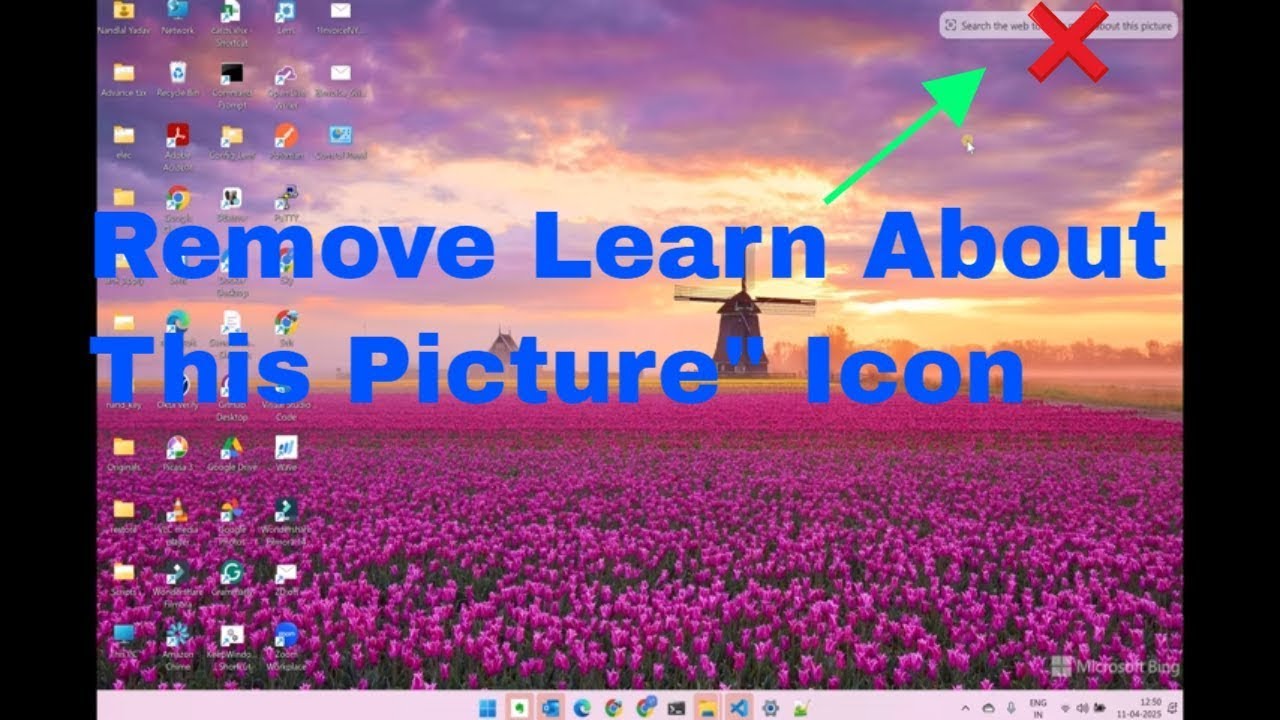
Windows 11: Get Rid of the 'Learn About This Picture' Icon in 1 Minute
September 28, 2026 — ny_wk
As an Amazon Associate I earn from qualifying purchases.
As an Amazon Associate I earn from qualifying purchases.
🛒 Recommended gear on AmazonDisclosure: some links above are affiliate links — if you buy through them I may earn a small commission at no extra cost to you. Thanks for supporting the channel!
As an Amazon Associate I earn from qualifying purchases.
Are you a Windows 11 user frustrated by the persistent "Learn About This Picture" icon cluttering your Lock Screen or desktop? This guide will show you how to swiftly and easily get rid of the 'Learn About This Picture' icon in Windows 11, restoring a cleaner, more personalized visual experience in under a minute.
Windows 11, with its sleek new interface and enhanced features, generally offers a more refined user experience compared to its predecessors. However, like any complex operating system, it occasionally introduces elements that, while well-intentioned, can become an annoyance for users who prefer a minimalist or highly customized setup. One such element is the "Learn About This Picture" icon, which appears predominantly on the Lock Screen when using Windows Spotlight, but can also sometimes manifest on the desktop, creating a visual distraction that many are keen to remove. This icon, designed to provide information about the stunning daily images curated by Microsoft, can feel intrusive if you're not interested in its interactive functionality or simply want an uninterrupted view of your chosen wallpaper.
The good news is that banishing this icon from your Windows 11 environment is far simpler than you might imagine, requiring just a few clicks within the system settings. This comprehensive guide will walk you through the precise steps to disable this feature, ensuring your Lock Screen and desktop remain exactly as you prefer them – uncluttered and perfectly tailored to your aesthetic.
Understanding the "Learn About This Picture" Feature
Before diving into the solution, it's helpful to understand why this icon exists in the first place. The "Learn About This Picture" icon is an integral part of Windows Spotlight, a popular feature introduced to provide users with a dynamic and visually engaging experience. Windows Spotlight automatically downloads and displays a new background image on your Lock Screen daily, featuring breathtaking landscapes, architectural marvels, and captivating abstract art from around the world. These images are often accompanied by subtle facts or locations, and the "Learn About This Picture" icon serves as a gateway to explore more about the current image – its geographical origin, the photographer, or interesting trivia related to the subject matter.
For many users, Windows Spotlight is a delightful feature, offering a fresh visual perspective each day without any manual intervention. It’s a passive way to discover new places and appreciate stunning photography. However, for those who prefer to set their own static Lock Screen background, or who simply find the icon itself distracting, its utility diminishes. The icon, while small, can break the immersion of a beautiful image, especially if you've gone to the trouble of selecting a personal photograph or a carefully curated wallpaper collection. Its presence on the Lock Screen means an extra element that isn't under your direct control, which can be contrary to the desire for a truly personalized digital space.
The icon's appearance is primarily tied to the Windows Spotlight setting for the Lock Screen. If you're using a "Picture" or "Slideshow" option for your Lock Screen background, you generally won't encounter this icon. It's when you opt for the "Windows Spotlight" feature that the icon makes its debut. While less common, some users have reported seeing similar informational overlays pop up on their main desktop wallpaper, especially if they have certain dynamic background applications or experimental Windows features enabled. Our focus here, however, will primarily be on tackling its most common manifestation: the Lock Screen.
The Swift Solution: Removing the Icon from Your Lock Screen
Getting rid of the 'Learn About This Picture' icon in Windows 11 is remarkably straightforward. The key lies in changing your Lock Screen background settings from "Windows Spotlight" to a static "Picture" or a personalized "Slideshow." This simple adjustment immediately removes the interactive element and, consequently, the icon associated with it. Here’s how to do it in a minute or less:
Step-by-Step Guide to a Cleaner Lock Screen:
- Open Settings: The quickest way to access Windows Settings is by right-clicking on the Start button (the Windows icon in the taskbar) and selecting "Settings" from the context menu. Alternatively, you can press the
Windows key + I on your keyboard.
- Navigate to Personalization: In the Settings window, you'll see a navigation pane on the left. Click on "Personalization." This section allows you to customize various aspects of your Windows experience, including themes, colors, and backgrounds.
- Select Lock Screen: Within the Personalization section, look for "Lock screen" in the main content area and click on it. This will open all the options related to your Lock Screen appearance.
- Change the Personalize your Lock Screen Setting: You'll see a dropdown menu labeled "Personalize your lock screen." By default, if you're seeing the "Learn About This Picture" icon, this option will be set to "Windows Spotlight."
- Choose Your Preferred Background: Click on the dropdown menu and select either "Picture" or "Slideshow."
- Picture: This option allows you to select a single static image as your Lock Screen background. Windows 11 provides a few default images, or you can browse your own collection by clicking "Browse photos."
- Slideshow: If you prefer a dynamic background but without the interactive elements of Windows Spotlight, "Slideshow" is an excellent choice. You can select an album or folder of your favorite images, and Windows will cycle through them. Click "Add a folder" to choose your collection.
- Verify the Change: Once you've selected "Picture" or "Slideshow," the change is applied immediately. You can lock your screen (
Windows key + L) to see the effect. The "Learn About This Picture" icon should now be gone, replaced by your chosen background or slideshow.
That's it! In just these few steps, you've successfully managed to remove the 'Learn About This Picture' icon in Windows 11, giving you back control over your visual desktop and Lock Screen environment. This process is fully reversible; if you ever miss Windows Spotlight, you can simply go back to the Lock Screen settings and re-select it.
Addressing Potential Pitfalls and Advanced Customization
While the steps above are usually all you need, sometimes Windows can be a bit… quirky. Here are a few common scenarios and advanced tips to ensure your Lock Screen stays icon-free and perfectly customized.
What if the icon persists?
In rare cases, the icon might linger for a moment or reappear after a reboot. Here's what to check:
- Restart Your Computer: A full restart can often resolve minor display glitches or settings not fully taking effect.
- Check for Updates: Ensure your Windows 11 is fully updated. Sometimes, bugs are patched in newer versions. Go to
Settings > Windows Update and click "Check for updates."
- Clear Cache (Advanced): For persistent issues, especially if related to Windows Spotlight images, you might need to clear the Windows Spotlight cache. This is a more technical step and should only be attempted if the simpler solutions fail. You can find the cache in
%LocalAppData%\Packages\Microsoft.Windows.ContentDeliveryManager_cw5n1h2txyewy\LocalState\Assets. Deleting the files in this folder (after setting your Lock Screen to a static picture first) and then rebooting can sometimes reset the Spotlight behavior.
Beyond the Lock Screen: Desktop Icons
While the "Learn About This Picture" icon is almost exclusively a Lock Screen feature, some users might experience similar "info" icons on their main desktop if they use dynamic wallpapers or third-party desktop customization tools. If you're seeing unwanted icons on your desktop:
- Review Third-Party Apps: Check any desktop customization software you've installed (e.g., Fences, Rainmeter, dynamic wallpaper apps). These often have their own settings for overlays and information display.
- Desktop Icons Settings: Ensure you haven't accidentally enabled specific desktop icons in Windows. Right-click on your desktop, select "Personalize" > "Themes" > "Desktop icon settings" (under Related Settings). Untick any system icons you don't want to see.
Enhancing Your Custom Lock Screen
Now that you've removed the 'Learn About This Picture' icon, you have full creative freedom over your Lock Screen. Here are some ideas for a truly personalized experience:
- Curate a Photo Collection: Create a dedicated folder with your favorite travel photos, family pictures, or inspirational art to use with the "Slideshow" option. This turns your Lock Screen into a rotating gallery of personal significance.
- Use High-Resolution Wallpapers: For the "Picture" option, always opt for high-resolution images that match your monitor's aspect ratio to avoid pixelation or stretching. Websites like Unsplash, Pexels, and DeviantArt offer stunning, free wallpapers.
- Integrate with Cloud Storage: If your photos are on OneDrive or Google Photos, consider syncing a specific album to your local drive for easy use with the slideshow feature. This ensures your Lock Screen stays fresh with new additions to your cloud albums.
- Quick Status Apps: While you're in the Lock Screen settings, remember you can also choose which apps display quick status updates (like Calendar, Mail, or Weather) without launching the app. This adds utility without clutter.
The ability to precisely tailor your digital environment is one of Windows 11's strengths. By understanding and utilizing these personalization options, you can ensure your Lock Screen is not just functional, but also a reflection of your personal style and preferences, free from any unwanted interruptions.
The Philosophy of a Clutter-Free Digital Space
Beyond the immediate relief of getting rid of the 'Learn About This Picture' icon, there's a broader philosophical underpinning to the desire for a clean, uncluttered digital space. In an age where we are constantly bombarded with notifications, ads, and digital noise, our personal computing environments often become extensions of this chaotic reality. A busy desktop or a Lock Screen with extraneous elements can contribute to a sense of overwhelm, making it harder to focus and diminishing the overall user experience.
For many, the computer is a tool for productivity, creativity, and relaxation. A clean interface contributes significantly to these goals. Imagine starting your day with a beautifully serene Lock Screen that displays a cherished memory or an awe-inspiring landscape, rather than an interactive prompt. This subtle shift can influence your mindset, providing a moment of calm before diving into tasks. Similarly, a desktop free from unnecessary icons and visual distractions allows for better organization and quicker access to essential applications, fostering a more efficient workflow.
The quest to remove elements like the "Learn About This Picture" icon is part of a larger trend towards digital minimalism. This movement advocates for intentionally reducing digital clutter to reclaim focus, improve well-being, and derive more value from our technology. It’s about being mindful of what occupies our screens and ensuring that every element serves a purpose that aligns with our personal goals or aesthetic preferences. While Windows Spotlight is designed to be engaging, for those prioritizing a curated and static visual, its interactive components become extraneous.
Moreover, taking the time to customize your operating system, even in small ways, empowers you. It reinforces the idea that your computer is your domain, a space you control, rather than a system dictating its terms to you. This sense of control can be incredibly satisfying and contributes to a more positive long-term relationship with your technology. Customization isn't just about aesthetics; it's about optimizing your environment for your personal comfort, efficiency, and peace of mind. By following the simple steps to remove the 'Learn About This Picture' icon, you're not just tweaking a setting; you're actively participating in the creation of your ideal digital workspace.
Key Takeaways
- The "Learn About This Picture" icon is part of Windows Spotlight, designed to provide information about Lock Screen images.
- You can easily remove the icon by changing your Lock Screen background setting from "Windows Spotlight" to "Picture" or "Slideshow."
- Access Lock Screen settings via
Settings > Personalization > Lock screen.
- Choosing "Picture" allows for a single static background, while "Slideshow" rotates through a folder of your chosen images.
- A clean digital space enhances focus, reduces clutter, and contributes to a more personalized and enjoyable user experience.
Frequently Asked Questions
Does removing the "Learn About This Picture" icon affect other Windows features?
No, removing the "Learn About This Picture" icon by changing your Lock Screen background only affects the Lock Screen display. It does not impact any other Windows 11 features, system performance, or functionality. You can switch back to Windows Spotlight at any time.
Can I still use Windows Spotlight but hide only the icon?
Unfortunately, Windows 11 does not currently offer a direct option to use Windows Spotlight while simultaneously hiding only the "Learn About This Picture" icon. The icon is an integrated part of the interactive Windows Spotlight experience. To remove the icon, you must switch to a "Picture" or "Slideshow" Lock Screen background.
What if I want to set a video as my Lock Screen background?
Windows 11 natively supports static images and image slideshows for the Lock Screen. It does not have built-in support for video backgrounds on the Lock Screen. To achieve a video Lock Screen, you would typically need to use third-party applications specifically designed for that purpose, which may have their own customization options and potential impacts on system resources.
By following this comprehensive guide, you now possess the knowledge and steps to confidently get rid of the 'Learn About This Picture' icon in Windows 11. Enjoy a cleaner, more personalized Lock Screen and a more focused digital environment. For more insightful tips, troubleshooting guides, and deep dives into technology and travel, be sure to watch the full video on how to remove the 'Learn About This Picture' icon and subscribe to @explorenystream for an ongoing stream of valuable content!