
Fixing AdSense Error: "An Error Occurred When We Tried to Apply the AdSense Widget to Your Blog
October 20, 2026 — ny_wk
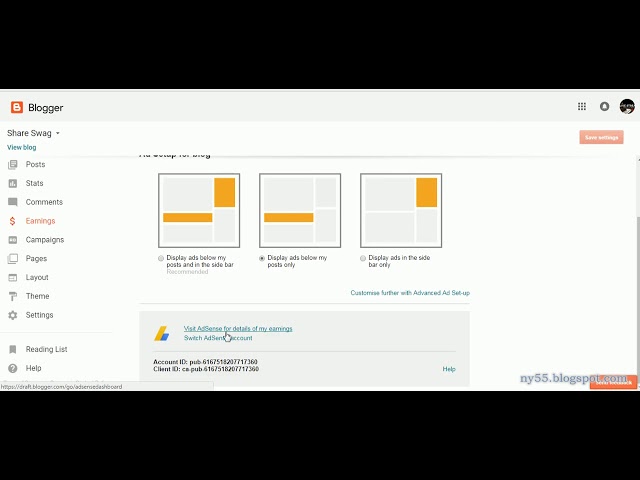
▶ Fixing AdSense Error: "An Error Occurred When We Tried to Apply the AdSense Widget to Your Blog | Subscribe to @explorenystream
Fixing AdSense Error: "An Error Occurred When We Tried to Apply the AdSense Widget to Your Blog"
If you've ever tried to monetize your Blogger site and slammed into the frustrating message — "An error occurred when we tried to apply the AdSense widget to your blog" — you're not alone. This error stops thousands of bloggers from connecting Google AdSense to their sites every single day, and the fix is rarely obvious. This comprehensive guide walks you through every verified solution, from account approval checks to manual widget insertion, so you can get your ads running and your blog finally earning.
Why the AdSense Widget Error Happens: Understanding the Root Causes
Before you can fix anything, you need to understand what's actually going wrong behind the scenes. The error message itself is maddeningly vague — "an error occurred" tells you almost nothing — but the underlying causes are actually quite specific and well-documented once you know where to look.
Google's AdSense-to-Blogger integration relies on a handshake between three separate systems: your Google AdSense account, your Blogger dashboard, and the template/theme layer of your blog. If any one of these three systems is out of sync, misconfigured, or hasn't completed a necessary process, the widget application fails and you get that error.
The Most Common Culprits
- AdSense account not yet approved or pending review — You cannot apply AdSense widgets to a blog if your account hasn't been fully approved.
- Blogger's "Allow Ads" setting is disabled — A single toggle in your Blogger settings can silently block the entire integration.
- Theme or template incompatibility — Third-party or heavily customized templates sometimes strip out the widget zones AdSense needs to attach to.
- Browser cache and cookies interfering — Stale session data between Google's services can create authentication conflicts that produce the error.
- AdSense policy violations on the blog — If your blog's content triggers a policy flag, AdSense will refuse to connect, often without a clear explanation.
- Missing or broken widget sections in the blog layout — If your layout XML is corrupted or missing standard widget sections, the AdSense widget has nowhere to anchor itself.
Understanding which of these is your specific problem determines which solution you apply first. Work through them systematically and you'll isolate the issue fast.
Step 1 — Check Your AdSense Account Approval Status
This is the single most overlooked cause of the widget error, especially for newer bloggers. Many people apply for AdSense, receive a preliminary confirmation email, assume they're approved, and then immediately try to add widgets — only to hit the error wall. The truth is that Google AdSense has a two-stage approval process, and failing to clear both stages will block widget integration every time.
Understanding the Two-Stage Approval
In the first stage, Google acknowledges your application and may even show a "Getting ready" status inside your AdSense dashboard. At this point, your account is not approved — it's being reviewed. The second stage involves Google crawling your blog, evaluating content quality, checking policy compliance, and then issuing a final decision. Only after this second-stage approval does the AdSense-to-Blogger widget connection actually work.
How to Check Your Approval Status
- Log into Google AdSense at adsense.google.com.
- Look at the top of your dashboard for any banners or status messages.
- Navigate to Account → Account Information and confirm the status reads "Active" — not "Pending" or "Under Review."
- If your account is still pending, you cannot add the widget. Focus on improving your blog's content volume, originality, and policy compliance while you wait.
Pro tip: Google typically takes between a few days and three weeks for full approval. If you've been waiting longer than a month, check your spam folder for a rejection notice or log into AdSense for a specific reason for delay.
Step 2 — Enable AdSense Ads in Your Blogger Settings
Assuming your AdSense account is fully approved, the next place to look is inside Blogger itself. There's a specific setting that controls whether Blogger will allow AdSense to interact with your blog at all, and it's surprisingly easy to miss — especially if you've migrated your blog, changed Google accounts, or recently updated Blogger's interface.
Locating the AdSense Settings in Blogger
- Go to your Blogger Dashboard and select your blog.
- In the left sidebar, click on Settings.
- Scroll down to find the "Monetization" or "AdSense" section (the exact label may vary depending on Blogger's current interface version).
- Ensure the toggle for allowing AdSense ads is switched ON.
- Confirm that the Google account linked to your AdSense is the same Google account you're using to manage this Blogger blog. Account mismatch is a huge source of this error.
Account mismatch deserves special emphasis. If you created your AdSense account under one Gmail address and your Blogger blog under a different Gmail address, the integration will fail silently. You need to either transfer blog ownership or link the accounts properly through Google's account management tools.
Step 3 — Manually Add the AdSense Widget When Automatic Integration Fails
Even with a fully approved account and all settings correctly configured, some Blogger setups simply refuse to let the automatic widget application work. This is often a template or layout issue, and the solution is to bypass the automatic process entirely and add the AdSense code manually. This approach is actually more reliable and gives you more control over ad placement.
Method A: Using the Blogger Layout Widget
- From your Blogger Dashboard, go to Layout.
- Click "Add a Gadget" in the sidebar or content area where you want ads to appear.
- In the gadget menu, scroll down to find HTML/JavaScript and click the + icon.
- Give the widget a title (optional) and paste your AdSense ad unit code directly into the content box.
- Click Save, then save your layout.
Method B: Adding AdSense Code Directly to Your Template HTML
For more precise control — especially for in-article or header ads — you can edit your blog's template HTML directly.
- Go to Theme → Edit HTML in your Blogger dashboard.
- Use
Ctrl+F(orCmd+Fon Mac) to search for the area where you want the ad to appear, such as just after<div class='post-body'>for in-post ads. - Paste your AdSense
<script>code in the desired location. - Click Save Theme.
Important: Always back up your current theme HTML before making any edits. Go to Theme → Backup/Restore → Download Theme. This gives you a recovery point if anything breaks.
Getting Your AdSense Ad Unit Code
- Log into your AdSense dashboard and navigate to Ads → By ad unit → Display ads.
- Create a new ad unit, set your size and type preferences, and click Create.
- Copy the generated
<script>code that appears. - This is the code you'll paste into either the HTML/JavaScript widget or directly into your template.
Step 4 — Troubleshoot Template and Layout Issues
If you're using a custom or third-party Blogger template, there's a strong chance the template itself is the source of your widget error. Many premium-looking free templates downloaded from third-party sites are either outdated, poorly coded, or deliberately strip out certain Blogger widget sections to prevent modification. This leaves AdSense with no valid anchor point.
Switch to a Default Blogger Theme Temporarily
The fastest way to diagnose a template problem is to switch to one of Blogger's official default themes — Contempo, Soho, Emporio, or Notable — and then try applying the AdSense widget again. If it works on a default theme but not on your custom template, your template is the problem.
Check Your Template XML for Widget Sections
If you want to keep your custom template, open the Theme HTML editor and search for <b:widget> tags and <b:section> tags. A properly structured Blogger template should have multiple widget sections. If these are missing or malformed, the AdSense widget has nowhere to attach. You may need to manually re-add standard Blogger widget section markup, which requires intermediate knowledge of Blogger's XML template structure.
Look for JavaScript Conflicts
Some templates load third-party JavaScript libraries that conflict with Google's AdSense scripts. Open your browser's Developer Tools (F12), go to the Console tab, and look for JavaScript errors when your blog loads. Errors referencing googletag, adsbygoogle, or push functions can indicate a script conflict that prevents AdSense from loading correctly.
Step 5 — Clear Cache, Cookies, and Try Alternative Browsers
It sounds almost too simple, but browser cache and cookie corruption is a legitimate and surprisingly common cause of the AdSense widget error. Google's services — particularly the authentication layer that connects your Google Account to both AdSense and Blogger simultaneously — can get stuck in broken session states that clearing your cache resolves instantly.
How to Properly Clear Cache and Cookies
- In Chrome: Press
Ctrl+Shift+Delete(Windows) orCmd+Shift+Delete(Mac), select All time as the time range, check Cookies and other site data and Cached images and files, and click Clear data. - In Firefox: Go to Settings → Privacy & Security → Cookies and Site Data → Clear Data.
- In Edge: Press
Ctrl+Shift+Deleteand follow the same process as Chrome.
Test in a Different Browser or Incognito Mode
After clearing cache, try the AdSense widget application in a completely different browser. If you normally use Chrome, try Firefox or Edge. Alternatively, open a private/incognito window, log into both Blogger and AdSense fresh, and attempt the widget application. Incognito mode starts with a completely clean session, which bypasses any persistent cookie issues.
Try a Different Device
If browser switching doesn't work, try the process on a different device entirely — a phone, tablet, or another computer. Device-level issues are rare but do occur, particularly when browser extensions (ad blockers, VPNs, privacy tools) interfere with Google's widget application scripts.
Step 6 — Ensure Your Blog Complies With Google AdSense Policies
Even a fully approved AdSense account can be blocked from connecting to a specific blog if that blog violates AdSense's content policies. Google's systems are sophisticated enough to scan your blog's content continuously, and if you've published content that conflicts with AdSense guidelines after your initial approval, the system may block widget application on that specific blog.
Key AdSense Policy Areas to Check
- Content quality: Your blog must have original, substantive content. Thin posts, copied content, or auto-generated text can trigger policy flags.
- Prohibited content: Content related to adult material, violence, dangerous activities, or copyright infringement is not eligible for AdSense monetization.
- Navigation and user experience: Your blog must be easily navigable. Blogs with broken layouts, excessive pop-ups, or misleading navigation may fail policy review.
- Privacy policy: Google increasingly requires blogs to have a visible Privacy Policy page that discloses data collection practices including AdSense's use of cookies.
- Minimum content threshold: While Google doesn't publish an exact number, blogs with fewer than 15-20 substantial posts often struggle with AdSense integration.
Review the Google AdSense Program Policies page directly — it's updated regularly and gives you the definitive rulebook for what is and isn't allowed.
Key Takeaways
- Always verify your AdSense account is fully approved — not just "pending" — before attempting to apply the widget to your Blogger blog.
- Check Blogger's monetization settings and confirm the Google account used for AdSense matches the account managing your blog — account mismatch is a silent killer.
- Manual widget insertion using HTML/JavaScript gadgets is a reliable workaround when automatic widget application fails, and it gives you better ad placement control.
- Template and layout issues are a major source of this error — always test with a default Blogger theme to isolate whether your custom template is the problem.
- Clearing cache and cookies and testing in different browsers or devices resolves a significant percentage of AdSense widget errors caused by broken session authentication.
Frequently Asked Questions
Why does the AdSense widget error appear even though my account is approved?
A fully approved AdSense account can still trigger the widget error if your Blogger account uses a different Google account than your AdSense account, if your blog's template is missing required widget sections, if your blog content violates AdSense policies, or if a browser session conflict is preventing the authentication handshake between Google's services. Work through each of these systematically — account approval is necessary but not sufficient for successful widget application.
Can I use AdSense on Blogger with a custom domain?
Yes, and in fact having a custom domain often improves your AdSense approval chances and integration reliability. However, if you've recently migrated from a blogspot subdomain to a custom domain, you may need to re-apply for AdSense or re-authorize the connection in both your AdSense dashboard