
Fixing AdSense Error: "An Error Occurred When We Tried to Apply the AdSense Widget to Your Blog
October 20, 2026 — ny_wk
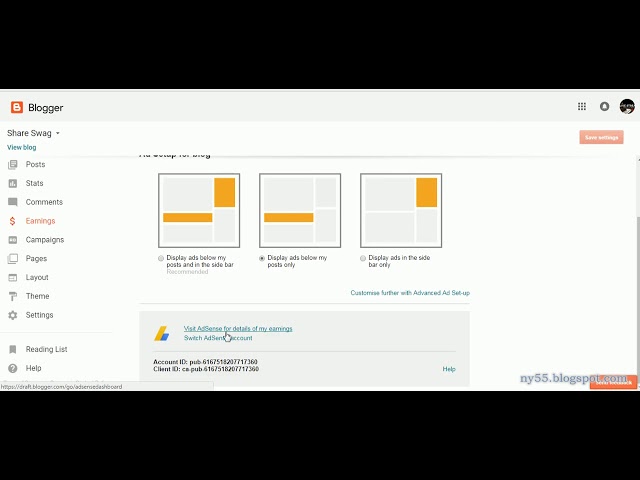
▶ Fixing AdSense Error: "An Error Occurred When We Tried to Apply the AdSense Widget to Your Blog | Subscribe to @explorenystream
Fixing AdSense Error: "An Error Occurred When We Tried to Apply the AdSense Widget to Your Blog"
If you've been trying to monetize your Blogger site and keep hitting the frustrating message "An error occurred when we tried to apply the AdSense widget to your blog," you are absolutely not alone — and the fix is more straightforward than Google makes it look. This comprehensive guide walks you through every known cause of this AdSense widget error, step-by-step solutions, advanced workarounds, and the best practices to ensure your blog stays monetization-ready long after you've resolved the issue today.
Why This AdSense Widget Error Happens in the First Place
Before you can fix something, you need to understand why it's breaking. The AdSense widget error on Blogger is one of those deceptively common problems that has multiple root causes — and that's precisely why so many bloggers waste hours trying random fixes that never stick. Google's integration between Blogger and AdSense is supposed to be seamless, but a handful of conditions can interrupt it at any point.
The Most Common Root Causes
- AdSense account not yet fully approved: If your AdSense account is still under review, pending, or has been flagged, the widget simply cannot be applied. Google won't allow unapproved accounts to place live ad code.
- Blogger settings blocking AdSense integration: There are specific settings inside your Blogger dashboard that control whether AdSense ads are permitted. If these are toggled incorrectly — sometimes after a dashboard update — the connection breaks.
- Corrupted or incompatible blog template: Third-party or heavily customized Blogger templates can interfere with the native AdSense widget because they modify the layout XML in ways that conflict with Google's ad placement logic.
- Browser cache and cookies storing outdated session data: Your browser might be loading a cached version of the Blogger dashboard that no longer reflects your actual account status, causing phantom errors.
- Policy violations on the blog: If your blog contains content that violates Google AdSense policies — thin content, copyrighted material, adult content, or prohibited niches — the widget will be blocked at the system level.
- Mismatched Google accounts: Trying to apply an AdSense account that is registered to a different Google email than the one managing the Blogger blog is a surprisingly common mistake.
Understanding which of these is affecting your specific situation is the first diagnostic step. Let's work through each solution methodically.
Step-by-Step Solutions to Fix the AdSense Widget Error on Blogger
Step 1: Verify Your AdSense Account Approval Status
This is the single most important check. Log in directly to ads.google.com — not through the Blogger shortcut — and look at the status banner at the top of your AdSense dashboard. You're looking for one of three statuses:
- Approved: You're good to proceed. The error is coming from somewhere else.
- Under Review / Pending: You must wait. There is no workaround for an unapproved account — Google will not serve ads regardless of how the widget is set up.
- Disapproved or Suspended: You'll need to address the specific policy issues cited in the disapproval email before attempting to re-apply the widget.
Also confirm that the Google account you used to sign into AdSense is the exact same account managing your Blogger blog. Open both in the same browser session and verify the profile email in the top-right corner of each. A mismatch here causes the integration to silently fail.
Step 2: Check Your Blogger Settings for AdSense Permissions
Even with an approved AdSense account, your Blogger blog must have the right internal settings enabled. Here's how to check:
- Go to your Blogger Dashboard → select your blog → click Settings in the left sidebar.
- Scroll down to the "Basic" section and look for options related to adult content or content visibility. If your blog is set to "Private" or restricted in visibility, AdSense cannot be applied.
- Navigate to the "Earnings" section (if visible in your region). This is where Blogger links directly to your AdSense account. If you see a "Connect to AdSense" prompt, it means the linkage has been broken or never completed.
- Make sure custom domain blogs have their domain correctly verified. Blogger blogs on custom domains occasionally lose AdSense linking when domain settings change.
If you don't see an "Earnings" tab at all, this may be a regional limitation — some countries have restricted Blogger-AdSense integration. In that case, the manual HTML/JavaScript widget method (covered in Step 4) is your primary solution.
Step 3: Manually Add the AdSense Widget Through Layout
When the automatic AdSense widget fails, bypassing it entirely through Blogger's Layout section is the most reliable next move. This method manually places an ad widget in a designated page element:
- From your Blogger dashboard, go to Layout.
- Click "Add a Gadget" in the sidebar or the area where you want ads to appear.
- In the gadget list, scroll to find the AdSense gadget specifically. If it appears and you can configure it without error, that's your fix — the widget was simply not being applied to the correct layout zone before.
- Select your ad size, format (display, in-feed, in-article), and save the gadget.
- Click "Save arrangement" at the top of the Layout page.
If the AdSense gadget itself throws an error when you try to add it, proceed directly to the custom HTML approach below.
Step 4: Use a Custom HTML/JavaScript Widget as a Workaround
This is the most powerful workaround for the widget error and it works regardless of whether Blogger's native AdSense integration is functioning. Here's how to do it:
- Log into your Google AdSense account at ads.google.com.
- Go to Ads → By ad unit → Display ads (or whichever format you prefer).
- Create a new ad unit, name it something recognizable (e.g., "Blogger Sidebar Ad"), and click Create.
- Copy the entire ad code snippet provided. It will look something like this:
<script async src="https://pagead2.googlesyndication.com/pagead/js/adsbygoogle.js?client=ca-pub-XXXXXXXXXX" crossorigin="anonymous"></script>

<ins class="adsbygoogle" style="display:block" data-ad-client="ca-pub-XXXXXXXXXX" data-ad-slot="XXXXXXXXXX" data-ad-format="auto" data-full-width-responsive="true"></ins>

<script>(adsbygoogle = window.adsbygoogle || []).push({});</script>
- Back in Blogger, go to Layout → Add a Gadget → HTML/JavaScript.
- Paste your copied AdSense code into the content field. Give the gadget a title if you wish (or leave it blank).
- Click Save, then save the layout arrangement.
This method completely sidesteps the broken native widget and places fully functional AdSense ads on your blog. Many experienced Blogger publishers actually prefer this method because it gives them more precise control over ad placement and sizing.
Step 5: Troubleshoot Template and Layout Issues
If you're running a third-party theme downloaded from a template marketplace, there's a real chance the theme's XML is interfering with AdSense's placement logic. Here's how to investigate:
- Temporarily switch to a default Blogger template (like Contempo or Simple) from Theme → My Themes → Restore to Classic or simply click a default theme option.
- After switching, try applying the AdSense widget again. If it works, you've confirmed the template is the culprit.
- If you want to keep your custom theme, go to Theme → Edit HTML and look for conflicting ad-blocking scripts, missing
</head>tags, or malformed XML that could interrupt Google's widget application process. - Specifically look for the
<b:skin>section and ensure there are no unclosed tags before it. Even a single malformed character in Blogger's XML can cause the entire layout system — and by extension, the AdSense widget — to fail.
Step 6: Clear Cache, Cookies, and Try a Different Browser
Browser-level issues are often overlooked but surprisingly common. Your browser's cache can store a broken session state from a previous failed attempt, meaning every time you try to apply the widget, you're actually replaying a cached failure.
- In Chrome: Press
Ctrl + Shift + Delete(Windows) orCmd + Shift + Delete(Mac) → select "All time" as the time range → check Cookies and Cached images/files → click Clear data. - After clearing, log out of all Google accounts, close the browser completely, reopen it, and log back in with only the account that manages both your AdSense and Blogger.
- If the error persists in Chrome, try Firefox or Microsoft Edge. Widget errors that persist in one browser often resolve in another due to differences in how cookies and session tokens are handled.
- You can also test in Incognito/Private mode, which runs without cached data or extensions that might be interfering.
AdSense Policy Compliance: The Hidden Blocker Most Bloggers Miss
Even after all the technical fixes above, some bloggers find that the AdSense widget still won't apply — and the reason is that their blog is quietly failing Google's AdSense content policies. This is more common than most people admit, especially with newer blogs.
What Google Looks for Before Approving Your Blog for Ads
- Original, substantial content: Blogs with fewer than 15-20 posts, or posts that are very short (under 300 words), are frequently flagged as having insufficient content for monetization.
- No prohibited content: Gambling, adult content, content promoting violence, hacking tools, or content that infringes on copyright will result in automatic blocking of the AdSense widget.
- Privacy Policy page: Google requires that monetized blogs have a visible Privacy Policy explaining data usage and cookie practices. Many beginners skip this and never understand why their widget fails at the account level.
- Navigation and usability: Blogs must have clear navigation (a menu, categories, or at minimum an accessible homepage). Blogs that look like spam landing pages are rejected automatically.
- No invalid click incentivization: Text like "Please click our ads" or any layout that tricks users into clicking on ads violates policy and can lead to both widget rejection and account termination.
Run a quick self-audit of your blog against these criteria before spending more time on technical troubleshooting. If your blog is policy-compliant but still getting the error, then the technical steps above will resolve it. But if there are policy issues, those must be fixed first.
Advanced Tips for Keeping Your Blogger-AdSense Integration Stable
Once you've resolved the immediate error, there are several practices that will keep your AdSense integration running smoothly over the long term and prevent this error from recurring.
Use Auto Ads for Maximum Stability
Instead of manually placing individual ad widgets, consider enabling Google Auto Ads. Auto Ads use machine learning to automatically determine the best placement and number of ads on your pages. Once you add the Auto Ads script to your blog's HTML header, you don't need individual widgets at all — removing the widget dependency and the widget error along with it.
To enable Auto Ads: AdSense Dashboard → Ads → By site → turn on Auto ads → copy the code → in Blogger go to Theme → Edit HTML → paste the code just before the closing </head> tag → save.
Keep Your Blogger Theme Updated
Template developers periodically release updates that fix XML compatibility issues. If you purchased or downloaded a premium Blogger theme, check the developer's site for updates, especially after major Blogger platform updates.
Monitor Your AdSense Account Health Regularly
Log into AdSense at least once a week and check the Policy Center. Google issues policy warnings there before taking action, and catching a warning early means you can resolve it before it escalates to a widget block or account suspension.
Connect Only One AdSense Account Per Blog
Multiple AdSense account attempts on the same blog create a tangle of permissions that can trigger the widget error indefinitely. Ensure you're only ever associating one AdSense publisher ID with each Blogger blog.
Key Takeaways
- Account approval is the gateway: No fix will work until your AdSense account is fully approved — always verify status at ads.google.com before troubleshooting further.
- The custom HTML/JavaScript widget method is the most reliable workaround when Blogger's native AdSense gadget fails, and it gives you full control over ad placement.
- Template issues are a major hidden cause — switching to a default Blogger theme temporarily is the fastest way to confirm whether your custom theme is the problem.
- Cache and browser environment matter more than most bloggers realize — always clear cookies and test in multiple browsers before concluding that the error is account-level or platform-level.
- Policy compliance is non-negotiable: A Privacy Policy page, original content, and clean navigation are prerequisites for a stable AdSense-Blogger integration, not optional extras.
Frequently Asked Questions
Why does Blogger say "An error occurred when we tried to apply the AdSense widget to your blog" even after my AdSense is approved?
This usually means there's a mismatch between the Google account linked to AdSense and the one managing your Blogger blog, or