
how to add idm extension in chrome
October 20, 2026 — ny_wk
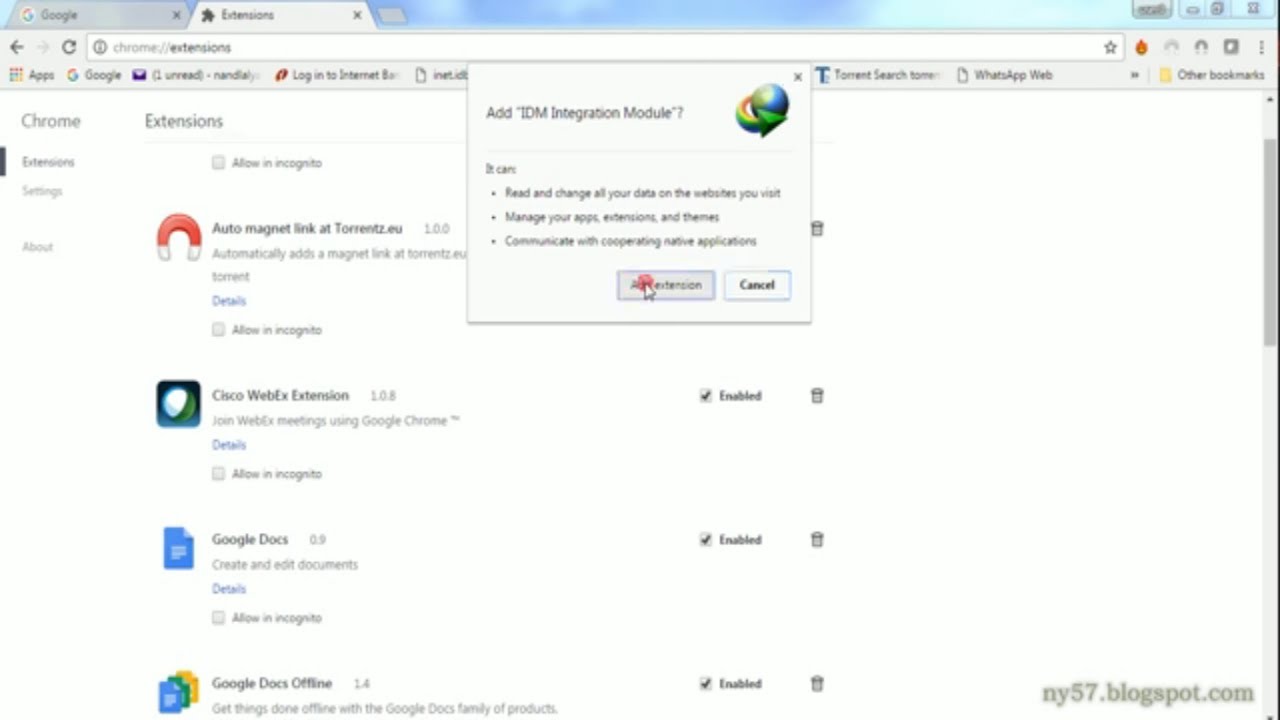
▶ how to add idm extension in chrome | Subscribe to @explorenystream
How to Add IDM Extension in Chrome — The Complete Step-by-Step Guide
Adding the IDM extension in Chrome is one of the most searched browser customization tasks among Windows users, yet it trips up thousands of people every single day because Chrome's security policies have made the process less straightforward than it once was. If you've installed Internet Download Manager (IDM) on your PC and can't figure out why the browser integration isn't working — or you simply want to set it up correctly from scratch — this exhaustive guide walks you through every method, every pitfall, and every verification step so you get it right the first time.
What Is IDM and Why Does the Chrome Extension Matter?
Internet Download Manager is one of the most powerful and widely used download acceleration tools for Windows, capable of boosting download speeds by up to five times through intelligent dynamic file segmentation. But IDM's power is almost entirely unlocked through its browser integration. Without the IDM Extension for Chrome, the software cannot intercept download links from the web, meaning you'd have to copy and paste URLs manually — defeating much of the purpose of owning the software in the first place.
The IDM Integration Module (its official name in the Chrome Web Store) acts as a bridge between your Chrome browser and the IDM application running on your system. When a video stream, file download, or media asset is detected, this extension captures the link and reroutes it through IDM's download engine. The result is faster, resumable, organized downloading — directly from the page you're browsing.
The complication? Google Chrome has progressively tightened its extension policies. Starting with the transition to Manifest V3, and with Chrome's persistent warnings about developer-mode extensions, many users find themselves confused, seeing red error bars, or discovering that their IDM toolbar button simply doesn't appear even after installation. Understanding why these issues happen — and how to resolve them properly — is what separates a frustrating hour of troubleshooting from a five-minute setup.
Before You Begin: Prerequisites and System Checks
Rushing into the extension installation without confirming a few baseline requirements is the number-one reason people end up going in circles. Run through this checklist before touching Chrome settings:
- IDM must be installed on your Windows PC. The Chrome extension is a communication layer — it has nothing to talk to if IDM itself isn't already installed and activated. Download IDM from the official site at
internetdownloadmanager.comand complete setup first. - IDM must be running in the system background. Open your system tray (bottom-right taskbar area) and confirm the IDM icon is present. If it isn't, launch IDM from your Start menu.
- Your IDM version should be reasonably up to date. Older IDM builds (pre-6.38) have known compatibility issues with modern Chrome versions. Open IDM, go to Help → Check for Updates, and apply any available patches.
- Chrome must be updated. Running an outdated Chrome build can cause the extension manifest to mismatch. Open
chrome://settings/helpto verify and update. - You need Windows administrative privileges for several of the steps below, particularly when installing extensions via the registry method.
With those boxes ticked, you're ready to proceed to the actual installation methods — and yes, there are multiple methods, each suited to a different scenario.
Method 1 — Installing IDM Extension from the Chrome Web Store (The Official Route)
This is the cleanest, most stable approach and the one that IDM's developers recommend for all current Chrome builds. Here's exactly how it works:
Step 1: Open the Chrome Web Store
In your Chrome address bar, type or paste: https://chrome.google.com/webstore/ and press Enter. Alternatively, you can access it from the three-dot menu under More Tools → Extensions → Open Chrome Web Store.
Step 2: Search for "IDM Integration Module"
In the search bar at the top-left of the Web Store, type IDM Integration Module and press Enter. The official extension, published by Tonec Inc. (IDM's developer), should appear near the top of results. Be cautious — there are imitation extensions with similar names. Look for the developer name "Tonec Inc." to confirm authenticity.
Step 3: Click "Add to Chrome"
On the extension listing page, click the blue Add to Chrome button. A popup will appear listing the permissions the extension requires — primarily the ability to read and change data on all websites, which is necessary for it to intercept download links. Click Add Extension to confirm.
Step 4: Confirm the Extension is Active
After installation, Chrome will display a brief notification at the top-right confirming the extension was added. You should see the IDM icon appear in your browser toolbar (it may be hidden inside the puzzle-piece extensions menu if your toolbar is crowded — click the puzzle piece, find IDM Integration Module, and pin it).
Step 5: Test the Integration
Navigate to any file download page — a PDF, a software installer, or a media file. When you click the download link, IDM should intercept it and open its download dialog box. If that happens, your setup is complete and working perfectly.
Method 2 — Enabling IDM Extension Through IDM's Built-In Browser Integration Tool
If the Web Store method didn't work, or if IDM was installed before Chrome and the automatic integration step was skipped, IDM includes its own internal tool to push the extension into Chrome.
Step 1: Open IDM
Launch Internet Download Manager from your desktop or Start menu. Make sure it opens fully — not just minimized to the system tray, but the main application window.
Step 2: Access the Options Menu
In IDM's menu bar, click Downloads, then select Options. This opens IDM's main configuration panel.
Step 3: Navigate to the "General" Tab
Inside Options, click on the General tab (it's usually the first tab visible). Look for a section labeled "IDM Integration" or "Browser Integration." You'll see checkboxes next to supported browsers.
Step 4: Check the Google Chrome Box
Ensure the checkbox next to Google Chrome is ticked. If it's already checked but the extension isn't working in Chrome, uncheck it, click Apply, then re-check it and click Apply again to force a re-registration.
Step 5: Restart Chrome Completely
This step is critical and often skipped. Don't just close the Chrome window — make sure Chrome is fully terminated. Type chrome://restart into the address bar and press Enter, or manually close all Chrome windows and reopen the browser from scratch. IDM's integration module requires a fresh browser session to register properly.
Method 3 — Fixing the "Extension May Have Been Corrupted" or Developer Mode Warning
This is the situation that frustrates most users the most. You install the IDM extension, Chrome shows an orange or red banner warning that the extension may be corrupted or was not installed from the Chrome Web Store, and offers to disable it. In some cases, Chrome disables it automatically on restart. Here's why this happens and how to resolve it properly:
Why Chrome Shows This Warning
Older versions of IDM used to silently install their extension using a Windows registry entry — effectively forcing the extension into Chrome without going through the Web Store. Chrome began blocking this method because it was also commonly exploited by malware. The result: the extension gets flagged and disabled.
The Correct Fix: Use the Web Store Version Instead
- Open
chrome://extensionsin your address bar. - Find any IDM-related extension that is flagged with a warning and remove it completely.
- Go back to the Chrome Web Store and install the official IDM Integration Module by Tonec Inc. from the store itself (as described in Method 1 above).
- Because it's now a Web Store extension, Chrome treats it as trusted and will not disable it on restart.
If You Must Use Developer Mode (Legacy Workaround)
In rare cases — for instance, if your network blocks the Chrome Web Store — you may need to load the IDM extension manually. Go to chrome://extensions, toggle on Developer Mode (top-right switch), then click Load Unpacked and navigate to IDM's installation directory (usually C:\Program Files (x86)\Internet Download Manager\) to find the IDMGCExt.crx file. Note that Chrome will repeatedly warn about developer-mode extensions — this is a Chrome policy limitation, not a bug you can fix permanently through settings alone.
Troubleshooting Common IDM Chrome Extension Problems
Even after following the correct installation steps, some users encounter persistent issues. Here are the most common problems and their targeted solutions:
IDM Icon Not Showing in Chrome Toolbar
Go to chrome://extensions and confirm the IDM Integration Module is listed and toggled on (the blue toggle should be active). If it's there but not showing in the toolbar, click the puzzle-piece icon in Chrome's top-right corner, find the extension in the dropdown list, and click the pin icon next to it.
IDM Not Intercepting Downloads
This usually means IDM isn't running in the background. Check your system tray. Also verify inside IDM's Options → File Types tab that the file types you're trying to download (e.g., .mp4, .zip, .exe) are included in IDM's monitored types list. Additionally, some download links use HTTPS redirects that can confuse older IDM builds — updating IDM typically resolves this.
Extension Keeps Getting Disabled After Restart
This is almost always because the extension was side-loaded via the registry rather than installed through the Web Store. Remove it, reinstall from the official Web Store listing, and the problem will stop.
IDM Extension Shows But Download Dialog Doesn't Open
Right-click the IDM toolbar icon in Chrome and select IDM Integration Module Options. Check that the extension is configured to handle downloads from the sites you're visiting. Some users accidentally add sites to the exclusion list, which tells IDM to ignore those URLs.
Plan Your Setup: A Quick-Reference Checklist
Think of this as your packing list before a trip — confirm everything is in order before you head out:
- ✓ IDM installed and licensed on Windows (not just trial-expired)
- ✓ IDM running in the system tray
- ✓ Chrome updated to the latest stable version
- ✓ IDM Integration Module installed from the Chrome Web Store (Tonec Inc.)
- ✓ Extension pinned to the Chrome toolbar for easy access
- ✓ Test download confirmed — IDM dialog opens when clicking a download link
Key Takeaways
- Always install the IDM Chrome extension from the official Chrome Web Store — search for "IDM Integration Module" by Tonec Inc. This is the only method that avoids Chrome's automatic blocking of side-loaded extensions.
- IDM must be installed and actively running on your Windows PC before the Chrome extension can function — the extension is a bridge, not a standalone tool.
- If Chrome shows a corruption warning on your IDM extension, remove the flagged version and reinstall cleanly from the Web Store; older registry-based installs are the root cause of this issue.
- Keeping both IDM and Chrome updated prevents the vast majority of compatibility problems that cause the extension to stop intercepting downloads.
- Pinning the IDM icon to the Chrome toolbar and regularly checking
chrome://extensionsensures the extension stays active and easily accessible whenever you need it.
Frequently Asked Questions
How do I add the IDM extension to Chrome if I can't find it in the Web Store?
Search specifically for "IDM Integration Module" (not just "IDM") in the Chrome Web Store search bar. The developer name is Tonec Inc. If the Web Store is inaccessible on your network, update IDM to the latest version first — newer IDM builds include a built-in installer that can push the correct Web Store extension to Chrome automatically via IDM's Options → General → Browser Integration settings.
Why does Chrome keep disabling my IDM extension after every restart?
Chrome automatically disables extensions that were installed outside the official Web Store process — a security measure introduced to combat malware. The permanent fix is to remove the side-loaded extension from chrome://extensions and reinstall the IDM Integration Module directly from the Chrome Web Store. Web Store extensions are trusted by Chrome and will not be disabled on restart.
Is it safe to enable Developer Mode in Chrome to use the IDM extension?
Enabling Developer Mode in Chrome is not dangerous by itself, but it does lower Chrome's extension security guardrails and Chrome will display a persistent warning banner every time you open the browser. It's only recommended as a temporary workaround. The strongly preferred approach is the Web Store installation, which requires no developer mode and carries no ongoing warning messages.
Does IDM work with Chrome on Mac or Linux?
No. Internet Download Manager is a Windows-only application and its Chrome extension only functions when the IDM application is installed and running on a Windows PC. Mac and Linux users looking for similar functionality should explore alternative download managers such as JDownloader or Motrix, which offer cross-platform browser integration.
Getting IDM working smoothly inside Chrome is genuinely one of those tasks that sounds simple but has a surprising number of moving parts — outdated software, Chrome policy changes, and confusing warning messages all conspire to make it harder than it should be. But with the right sequence of steps and an understanding of why each step matters, it's a completely solvable puzzle that takes under ten minutes once you know what you're doing.
For a visual walkthrough of exactly how to add the IDM extension in Chrome — seeing every click, every screen, every confirmation dialog in real time — watch the full video on the