
how to add idm extension in chrome
October 20, 2026 — ny_wk
▶ how to add idm extension in chrome | Subscribe to @explorenystream
How to Add IDM Extension in Chrome — The Complete Step-by-Step Guide
Adding the IDM extension in Chrome is one of the most searched browser customization tasks for anyone who relies on Internet Download Manager (IDM) to accelerate and manage their downloads. If you've installed IDM on your PC but can't figure out why Chrome isn't picking up the integration module, or you're seeing the dreaded "IDM extension is not installed" warning, this guide walks you through every step — from the initial installation to troubleshooting the trickiest edge cases — so you can get your downloads supercharged without wasting another hour on forums.
Why IDM and Chrome Don't Always Play Nice — Understanding the Problem First
Before diving into the steps, it's worth understanding why adding the IDM extension to Chrome is even a challenge in the first place. Unlike Firefox, which historically had friendlier extension APIs, Google Chrome enforces strict policies around how third-party software can inject itself into the browser. This means Internet Download Manager can't simply silently install its integration module the way it used to in older versions of Chrome.
Chrome regularly updates its extension management system, and Google's push toward the Manifest V3 extension framework has created compatibility headaches for tools like IDM that rely on deep browser integration. On top of that, Chrome now blocks extensions that aren't distributed through the Chrome Web Store when installed in developer mode by default — unless you know exactly where to look and what settings to toggle.
There's also the matter of IDM versions. An outdated copy of Internet Download Manager — say, anything below version 6.38 or 6.40 — may not have the updated Chrome extension packaged with its installer. Users who haven't kept IDM updated often find themselves going in circles, reinstalling the extension repeatedly without success.
Understanding this friction is the foundation. Once you know why the problem exists, the solution becomes far less mysterious.
What You Need Before You Start — Prerequisites Checklist
Rushing into the steps without the right setup is the number-one reason people fail to add the IDM extension in Chrome successfully. Run through this checklist first:
- IDM must be fully installed and licensed (or in trial mode): The extension is merely a bridge between Chrome and the IDM application running on your Windows PC. If IDM isn't installed and running, there's nothing to bridge to.
- Windows OS: IDM is a Windows-only application. Mac and Linux users will not find an official IDM client, and this guide is Windows-specific.
- Google Chrome (any modern version): This guide works for Chrome 80 and above, including the latest 2024 builds.
- Administrative privileges: Some steps — particularly modifying IDM settings and enabling extensions — require you to be logged into Windows as an administrator.
- The latest version of IDM: Head to the official IDM website (internetdownloadmanager.com) and ensure you're running the most current build. At the time of writing, version 6.42 includes a significantly improved Chrome integration module.
- Stable internet connection: You'll need to download the extension from the Chrome Web Store as part of this process.
With all of these boxes checked, you're ready to move forward with confidence.
How to Add the IDM Extension in Chrome — The Correct Step-by-Step Method
There are two primary pathways to get the IDM integration module working in Chrome. The first is the recommended route via the Chrome Web Store. The second is a manual installation approach for users who can't access the store or prefer offline methods. Both are covered below in full detail.
Method 1: Installing IDM Extension from the Chrome Web Store (Recommended)
This is the cleanest, most reliable method and the one you should always try first.
- Step 1 — Open Google Chrome and make sure you're signed into your Google account. This helps Chrome sync your extension settings across devices.
- Step 2 — Navigate to the Chrome Web Store. In your address bar, type
https://chrome.google.com/webstoreand hit Enter. Alternatively, search "IDM Integration Module Chrome Web Store" directly in Google. - Step 3 — Search for the official extension. In the Web Store search bar, type "IDM Integration Module". The official extension is published by Tonec Inc., which is the company behind Internet Download Manager. Do not install any third-party IDM extensions — there are fakes that can compromise your browser security.
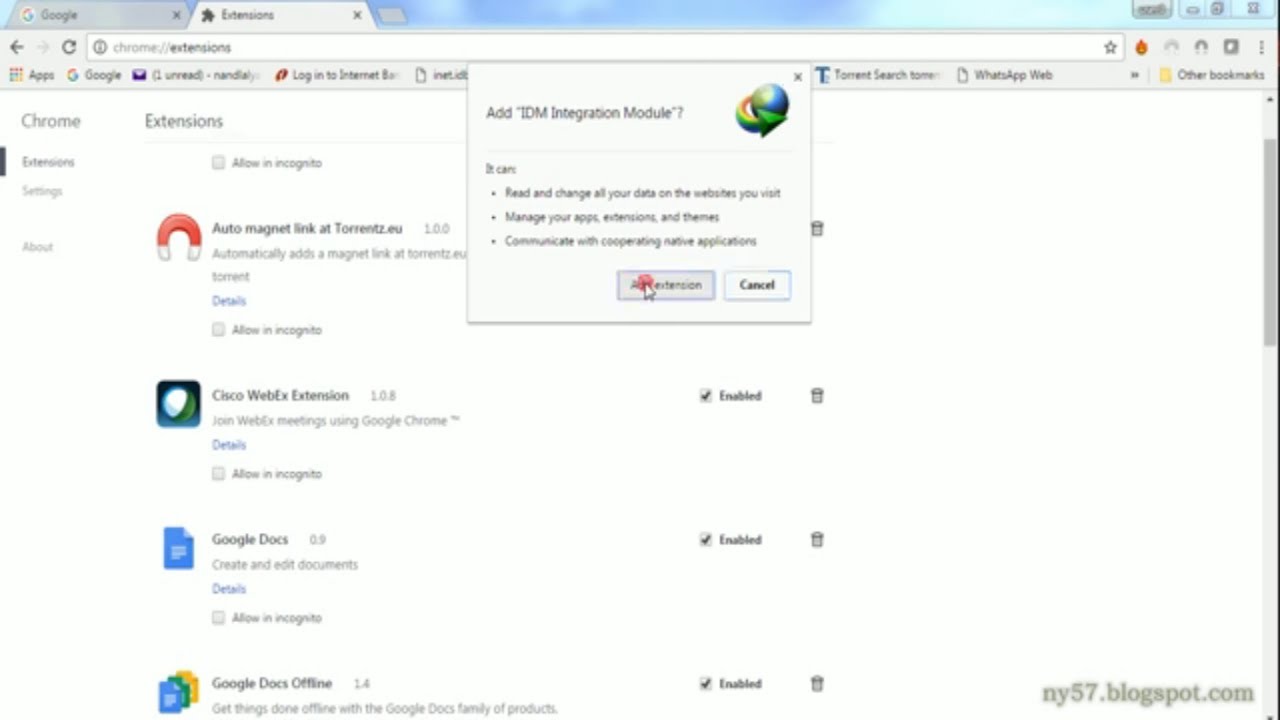
- Step 4 — Click "Add to Chrome." A popup dialog will appear asking for permissions. The IDM Integration Module typically requests access to all websites (to intercept download links) and the ability to communicate with the native IDM application. Click "Add Extension" to confirm.
- Step 5 — Verify the extension is active. After installation, look at your Chrome toolbar. You should see a small IDM icon (a downward arrow with color branding). If it appears greyed out, IDM may not be running in the background — open your IDM application from the taskbar or Start menu.
- Step 6 — Test a download. Navigate to any file download link — a PDF, a ZIP file, a video. When you click the link, IDM should intercept it and open the familiar IDM download dialog box. If it does, you're done.
Method 2: Enabling the IDM Extension Manually (If IDM Was Already Installed)
Sometimes, when IDM is installed before Chrome, or after a Chrome update wipes extension permissions, the IDM module gets disabled. Here's how to re-enable it manually:
- Step 1 — Open Chrome Extensions Manager. Type
chrome://extensionsin your address bar and press Enter. - Step 2 — Look for IDM Integration Module in your list of installed extensions. It may already be there but toggled off.
- Step 3 — Toggle it on. Use the blue slider switch to enable the extension. Chrome may prompt you to confirm — accept the prompt.
- Step 4 — Restart Chrome. Close all Chrome windows completely (right-click the Chrome icon in the taskbar and select "Exit") and reopen it. This ensures the extension loads properly into the browser session.
- Step 5 — Check IDM settings. Open the IDM application, go to Options → General, and check that the option "Use advanced browser integration" is ticked. Also, ensure your browser (Chrome) is listed and checked under Options → General → Browsers.
Method 3: Manual Extension Installation via IDM's Local Files
For power users or those in restricted environments where Chrome Web Store access is blocked:
- Open your IDM installation folder — typically located at
C:\Program Files (x86)\Internet Download Manager\. - Look for a file or folder named something like IDMGCExt.crx or a subfolder labeled "Chrome Extension."
- Open
chrome://extensions, enable Developer Mode (toggle in the top-right corner). - Drag and drop the .crx file onto the extensions page, or click "Load unpacked" if you have the extension folder.
- Chrome will warn you about developer mode extensions on every launch — this is normal behavior and not a security threat for a trusted tool like IDM.
Common Problems When Adding IDM Extension to Chrome — And How to Fix Them
Even with the right steps, things can go wrong. Here are the most frequent issues users encounter when trying to add IDM extension in Chrome, with proven fixes for each:
Problem: IDM Icon Is Greyed Out or Shows "IDM is not running"
This almost always means the IDM application isn't running in the background. Open Internet Download Manager from your desktop shortcut or Start menu. IDM must be running as a process for the Chrome extension to communicate with it. Consider enabling IDM to start with Windows: open IDM → Options → General → check "Start IDM on Windows startup."
Problem: Chrome Keeps Disabling the IDM Extension
This is a known Chrome behavior where extensions not from the Web Store get automatically disabled after a browser restart. The fix is to install the official IDM Integration Module from the Chrome Web Store (Method 1 above) rather than via the local .crx file method. Web Store extensions are not subject to auto-disabling.
Problem: IDM Doesn't Intercept Downloads — Chrome Downloads Instead
Check IDM's file type settings. Open IDM → Options → File Types. Ensure the file types you want IDM to handle (MP4, ZIP, EXE, PDF, etc.) are listed. Also verify that under Options → General → Browsers, Google Chrome is checked. If the problem persists, try disabling any other download manager extensions that might be conflicting.
Problem: "IDM Extension is Not Installed" Error on Certain Websites
Some websites (particularly streaming platforms) use dynamic URL structures that older IDM versions can't parse. Update IDM to the latest version, which includes improved parsing algorithms for modern web protocols including HLS streams and DASH segments.
Problem: Extension Installed But No IDM Dialog Appears
Right-click the IDM toolbar icon and select "IDM Integration Module Options." Here, you can configure which file types trigger IDM, set size thresholds (e.g., only intercept files above 1 MB), and whitelist or blacklist specific websites. Adjusting these filters often resolves silent non-interception issues.
Pro Tips to Get the Most Out of IDM with Chrome
Once the IDM Chrome extension is working correctly, there's a whole layer of power-user functionality most people never discover:
- Use the IDM panel on video pages: On supported video streaming sites, IDM overlays a download button directly on the video player. Hover over the video to see it appear. This is invaluable for grabbing MP4 files without needing additional video downloader tools.
- Set download categories and auto-save folders: In IDM → Options → Save To, configure automatic folder routing by file type. Videos go to your Videos folder, music to Music, documents to Documents — hands-free organization.
- Schedule downloads: IDM includes a built-in download scheduler. Queue up large files and set them to download at off-peak hours (like 2 AM) when bandwidth is plentiful.
- Use IDM's batch download feature: Right-click the IDM toolbar icon and select "Download All Links from Page" to grab multiple files from a single web page simultaneously.
- Speed limiter for specific sessions: If you need to stream video while downloading, use IDM's speed limiter (Downloads → Speed Limiter) so IDM doesn't consume all available bandwidth.
- Keyboard shortcut override: Hold Alt while clicking a download link to force IDM to intercept it, even for file types not in IDM's watch list. This is a lifesaver for edge cases.
Key Takeaways
- Always install the IDM Integration Module from the official Chrome Web Store — it's the most stable method and won't be auto-disabled by Chrome's security policies.
- IDM must be installed, licensed, and actively running on your Windows PC for the Chrome extension to function — the extension is a bridge, not a standalone tool.
- Keep both IDM and Chrome updated to avoid compatibility breaks introduced by Chrome's evolving extension framework and Manifest V3 changes.
- Check IDM's Options → General → Browsers settings if downloads aren't being intercepted — Chrome must be explicitly enabled in IDM's browser integration list.
- Most IDM-Chrome problems have simple fixes — a greyed-out icon usually means IDM isn't running, auto-disabled extensions usually mean you're using the .crx manual method, and missed downloads usually mean file type filters need adjustment.
Frequently Asked Questions
Is the IDM extension for Chrome free?
The IDM Integration Module extension itself is free to install from the Chrome Web Store. However, Internet Download Manager (the desktop application it connects to) is a paid software with a 30-day free trial. After the trial period, you'll need to purchase a license to continue using IDM's full download acceleration and management features.
Why does Chrome keep disabling my IDM extension?
Chrome automatically disables extensions that were installed via developer mode or sideloaded .crx files as a security measure. To permanently fix this, uninstall your current IDM extension and reinstall it directly from the Chrome Web Store. Extensions installed through the Web Store are not subject to Chrome's automatic disabling policy.
Can I use IDM extension on Chrome for Mac?
No — Internet Download Manager is a Windows-only application. There is no official IDM client for macOS, and therefore the IDM Chrome extension will not function on a Mac. Mac users looking for similar functionality often turn to alternatives like Downie, JDownloader 2, or browser-based download managers that have native macOS support.
How do I know which IDM extension in Chrome is the official one?
The official IDM Integration Module is published by Tonec Inc. in the Chrome Web Store. The extension ID is fiegdmejfepffgpnejdinekhfieaogmj. Always verify the publisher name before installing. Any extension claiming to be IDM but published by an unknown developer is likely a fake and should be avoided for security reasons.
Ready to see this entire process walked through visually, step by step? Watch the full video on the @explorenystream YouTube channel where every click, every menu, and every setting is shown in real time — perfect if you prefer to follow along rather than read. While you're there, subscribe to @explorenystream for more practical how-to guides, tips, and tutorials that cut through the noise and get straight to what works. Drop a comment on the video if you run into any specific errors — the community there is active and helpful.