
How to delete or recover your Google Account
October 20, 2026 — ny_wk
▶ How to delete or recover your Google Account | Subscribe to @explorenystream
How to Delete or Recover Your Google Account — The Complete Guide You Actually Need
Deleting or recovering a Google account is one of the most consequential actions you can take in your digital life — and yet millions of people attempt it every year without fully understanding what they're about to lose, or how to get it back. Whether you're trying to permanently remove a Google account you no longer want, or you're in a panic trying to recover access to an account you've been locked out of, this comprehensive guide walks you through every step, every pitfall, and every recovery option available to you right now.
Why People Delete or Recover Google Accounts — And Why It Matters More Than You Think
Your Google account isn't just an email address. It's the central hub connecting Gmail, Google Drive, Google Photos, YouTube, Google Pay, Android device management, Google Maps history, Google Docs, Chrome sync, and dozens of third-party apps that use Google Sign-In. When you delete your account — or lose access to it — the ripple effect can be devastating if you're unprepared.
People delete Google accounts for all kinds of legitimate reasons: switching to a privacy-focused alternative like ProtonMail, consolidating multiple accounts, leaving a former employer's ecosystem, or simply wanting a clean digital slate. On the other side, account recovery becomes urgently necessary when you've forgotten a password, lost access to your recovery phone number, had your account compromised by a hacker, or inherited a device from a family member.
Understanding the difference between these two scenarios — intentional deletion versus emergency recovery — is the first step toward handling either one correctly. Let's go deep on both.
What Actually Happens When You Delete Your Google Account
Before you touch that delete button, you need to know exactly what disappears — and what window you have to change your mind.
Data That Is Permanently Lost
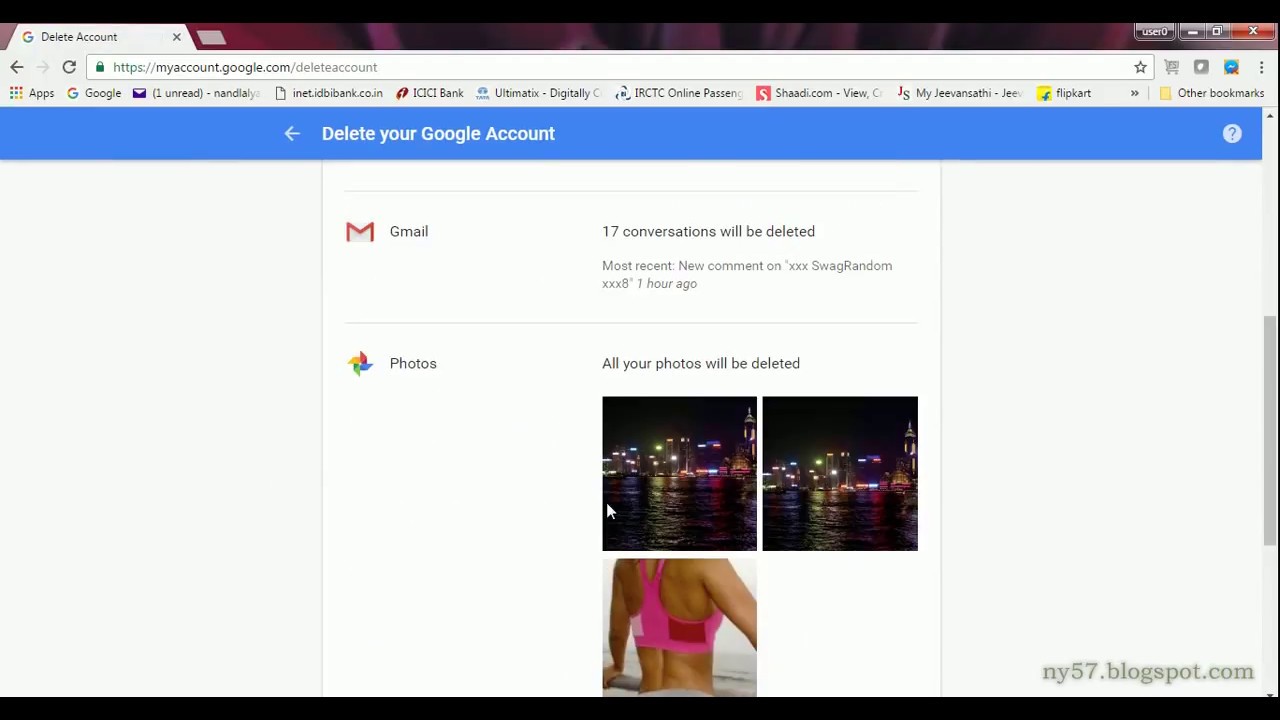
- All Gmail messages and contacts — every email you've ever sent or received, every saved contact, gone.
- Google Drive files — documents, spreadsheets, presentations, PDFs, and any files others have shared specifically with your account.
- Google Photos — unless you've already downloaded your library or backed it up elsewhere, your photos and videos are deleted.
- YouTube channel and videos — if your account owns a YouTube channel, that channel, its subscribers, its videos, and all monetization history disappear.
- Google Pay balance and transaction history — any stored payment methods and records vanish.
- Google Play purchases — apps, movies, books, and games purchased through Google Play are no longer accessible, even if you create a new account.
- Chrome sync data — saved passwords, bookmarks, autofill data, and browsing history synced through Chrome.
- Access to third-party apps — any service where you used "Sign in with Google" will lock you out.
The Recovery Window You Absolutely Must Know About
Google does offer a short recovery window after deletion. If you act quickly — typically within a few days of deleting your account — you may be able to restore it by visiting accounts.google.com/signin/recovery and following the prompts. This window is not guaranteed, and it gets shorter the longer you wait. After this window closes, the deletion is permanent and irreversible. No amount of customer support escalation will bring your data back.
This is why downloading your data before you delete is non-negotiable.
How to Delete Your Google Account — Step by Step
Follow these steps in order. Do not skip the data download step.
Step 1: Download Your Google Data First
Go to takeout.google.com. This is Google's official data export tool, called Google Takeout. Here you can select which services to include in your export — Gmail, Drive, Photos, Contacts, Calendar, and more. Choose your file format (ZIP is the most universally compatible), set your delivery method (download link sent to email, or export directly to Google Drive, Dropbox, OneDrive, or Box), and hit "Create export."
Depending on how much data you have, this can take anywhere from a few minutes to several days. Do not proceed with account deletion until you have successfully downloaded and verified your export archive.
Step 2: Audit Your Third-Party App Dependencies
Before deleting, go to myaccount.google.com/permissions and review every third-party app connected to your account. Make a list of services where you used Google Sign-In. For each one, create an alternative login method — a new email and password — before you delete your Google account, or you will be permanently locked out of those services too.
Step 3: Navigate to Account Deletion
- Go to
myaccount.google.com - Click on Data & Privacy in the left-hand navigation
- Scroll down to the section labeled "More options"
- Click "Delete your Google Account"
- You'll be asked to sign in again to confirm your identity
Step 4: Review and Confirm
Google will show you a checklist of everything that will be deleted. Read it carefully. You must check two confirmation boxes acknowledging that you understand the data loss is permanent. Then enter your password one final time and click "Delete Account."
You'll receive a confirmation email at any recovery email address you have on file. Save this email. It contains a link you can use if you change your mind within the recovery window.
Option: Delete Only Gmail, Not Your Entire Google Account
If you want to keep your YouTube history, Google Drive files, or other Google services but just want to eliminate your Gmail address, Google allows you to delete only the Gmail service rather than your entire account. Go to myaccount.google.com → Data & Privacy → Delete a Google service → click the trash icon next to Gmail. You'll need to provide an alternative email address that becomes your new Google account login.
How to Recover Your Google Account — Every Method Explained
Getting locked out of a Google account is one of the most stressful digital experiences imaginable, especially if the account is connected to your phone, your work tools, or years of irreplaceable memories. The good news is that Google has built several robust recovery pathways — but they depend on what information you set up before you lost access.
Recovery Method 1: Forgotten Password
This is the most common scenario. Go to accounts.google.com/signin/recovery and enter your Gmail address. Google will offer you several identity verification options in order of reliability:
- Send a verification code to your recovery phone number — the fastest and most reliable method if your phone number is still active and on file.
- Send a verification code to your recovery email address — works if you have access to the backup email you registered.
- Confirm a code sent to your registered Android device — if you're still signed into the account on an Android phone or tablet, Google can push a prompt directly to that device.
- Answer your security question — only applies to older accounts that set these up; most modern accounts don't use this method.
- Enter a previously used password — Google may accept a password you used previously if you remember one from the past.
Recovery Method 2: Account Compromised by a Hacker
If someone else has changed your password and taken over your account, go immediately to accounts.google.com/signin/recovery. Even if the hacker changed your password, Google's recovery system will try to verify you through your original recovery phone number or email. If those were also changed by the hacker, you'll need to use the identity verification flow, where Google asks you account-specific questions — like when you created the account, recent emails you sent, or devices you've used.
After recovering, immediately go to myaccount.google.com/security and revoke all active sessions, update your password to something strong and unique, enable 2-Step Verification, and audit all third-party apps with account access.
Recovery Method 3: No Recovery Options Set Up
This is the hardest scenario, and unfortunately very common. If you never added a recovery phone or email, Google relies on account knowledge verification. You'll be asked questions like:
- What month and year did you create this account?
- What were recent email addresses you communicated with?
- What devices and browsers did you typically use with this account?
Answer these as accurately as possible. Google's algorithm weighs your answers against account metadata to determine if you are the legitimate owner. Location matters here — attempt recovery from a device and network (home WiFi, city, country) where you've previously been signed in. Google's systems are more likely to grant access when the request comes from a familiar environment.
Recovery Method 4: Recovering a Recently Deleted Account
If you deleted your account and regret it, move fast. Go to accounts.google.com/signin/recovery, enter the deleted account's email address, and follow the prompts. If you're within Google's recovery window, you'll be able to restore the account and all associated data. Once past this window, restoration is impossible — even for Google's support team.
Recovery Method 5: Two-Step Verification Lockout
If 2-Step Verification (2FA) is enabled and you've lost your authenticator device or phone number, Google provides backup codes that you should generate and store when you first set up 2FA. These 10 one-time-use codes are your lifeline. If you never generated or saved them, recovery becomes significantly more difficult and requires going through Google's account recovery identity verification process, which can take several days and is not guaranteed.
How to Set Up Your Google Account to Never Lose Access Again
The best time to protect your Google account is right now, before anything goes wrong. Here's the security checklist every Google account owner should complete:
Essential Security Settings at myaccount.google.com/security
- Add a recovery phone number — use a number you reliably control long-term. Keep it updated if you change phones or carriers.
- Add a recovery email address — this should be a completely separate email account (not another Google account you might also lose access to).
- Enable 2-Step Verification — use an authenticator app like Google Authenticator or Authy rather than SMS for stronger protection.
- Generate and store backup codes — go to
myaccount.google.com/two-step-verification/backup-codes, generate 10 codes, and store them somewhere physically safe (printed and stored, or in a password manager). - Review connected devices — regularly audit which devices are signed into your account and revoke access to any you no longer use.
- Complete the Google Security Checkup — visit
myaccount.google.com/security-checkupfor a guided review of your account's security health. - Use a strong, unique password — managed through Google Password Manager or a third-party tool like Bitwarden or 1Password.
Key Takeaways
- Deleting your Google account is permanent once the short recovery window closes — always download your data via Google Takeout before proceeding.
- You can delete only Gmail without losing your entire Google account, preserving Drive, Photos, YouTube, and other services.
- Account recovery success depends directly on what recovery information you set up beforehand — a recovery phone number and email are your most powerful tools.
- Attempt recovery from a familiar device and location — Google's systems use historical login patterns to verify identity when you have no other recovery method available.
- Backup codes for 2-Step Verification are a critical safety net — generate them now and store them safely, because they're the last resort when everything else fails.
Frequently Asked Questions
Can I recover a permanently deleted Google account?
If you deleted your Google account recently, you may be able to recover it by going to accounts.google.com/signin/recovery and following the prompts within Google's short recovery window (typically a few days). After this window closes, account recovery is not possible — the deletion becomes permanent and Google cannot restore the data even through customer support.
What happens to my Gmail address if I delete my Google account?
When you delete your Google account, your Gmail address is also permanently deleted. Google does not reassign deleted Gmail addresses to new users, so no one else can claim your old email address — but you also cannot reclaim it yourself if you change your mind after the recovery window closes.
How long does Google account recovery take?
Password reset via recovery phone or email is nearly instant — typically under five minutes. Identity verification recovery (when no recovery options are set up) can take anywhere from a few hours to several days as Google reviews your submitted information. There is no guaranteed timeline, and not all recovery attempts are successful if insufficient account information is provided.
Can I delete my Google account without losing my YouTube channel?
No. Your YouTube channel is tied to your Google account, and deleting the account deletes the channel along with all its videos, subscribers, playlists, and monetization history. If you want to preserve your YouTube channel, do not delete the associated Google account. You can, however, delete only the Gmail service while keeping your account — and your YouTube channel — intact.
Managing your Google account — whether that means permanently walking away from it or fighting to get it back — is a process that rewards preparation and punishes improvisation. The steps above give you everything you need to do either with confidence. For a full visual walkthrough of exactly how these settings look inside your Google account right now, watch the complete video from @explorenystream — subscribe to the channel so you never miss a practical digital guide like this one.