Fixing AdSense Error: "An Error Occurred When We Tried to Apply the AdSense Widget to Your Blog
November 10, 2026 — ny_wk
As an Amazon Associate I earn from qualifying purchases.
Fixing AdSense Error: "An Error Occurred When We Tried to Apply the AdSense Widget to Your Blog"
Getting the dreaded "An error occurred when we tried to apply the AdSense widget to your blog" message? You're not alone — this is one of the most frustrating and common roadblocks Blogger users hit when trying to monetize their sites with Google AdSense, and the fix is almost always within reach once you know exactly where to look.
Whether you're a brand-new blogger just approved for AdSense or a seasoned publisher suddenly unable to place ads after a platform update, this comprehensive guide walks you through every verified solution — from account-level checks to template-level fixes — so you can get your ads running and your revenue flowing as quickly as possible.
Understanding Why the AdSense Widget Error Happens on Blogger
Before diving into solutions, it's worth understanding what's actually happening behind the scenes when Blogger throws this error. The AdSense widget integration on Blogger relies on a handshake between your Blogger account, your Google account, and your active AdSense publisher account. When any one of those three connections breaks down — or when your blog's template, settings, or browser state interferes — the widget fails to apply and you get that generic error message.
The error is notoriously vague. Google doesn't tell you which part of the process failed, which is why so many bloggers end up spinning their wheels trying random fixes. The structured approach below eliminates the guesswork by addressing the most common root causes in order of frequency.
The Most Common Root Causes
- AdSense account not fully approved — your application may still be pending or conditionally approved
- Blogger's ad settings are switched off — a platform-level toggle that many users overlook
- Template incompatibility — heavily customized or third-party templates can block widget injection
- Browser cache and cookies — stale session data creates authentication conflicts
- Mismatched Google accounts — using different accounts for Blogger and AdSense in the same browser session
- AdSense policy non-compliance — blogs that violate content policies are silently blocked from widget application
Step 1 — Check Your AdSense Account Approval Status First
This is the single most important starting point and the step most frustrated bloggers skip. The AdSense widget cannot and will not apply to any blog if your AdSense account isn't fully active. Google operates a two-stage approval process that confuses a lot of publishers.
Understanding the Two-Stage AdSense Approval
When you first apply for AdSense, you receive an initial approval email that lets you connect AdSense to your blog. However, full approval — the stage that actually activates ad serving — only comes after Google reviews your site with the AdSense code already present. During this review window, which can take anywhere from a few days to a few weeks, attempting to manually apply the widget through Blogger's layout panel will often trigger the error.
- Log into your AdSense dashboard at adsense.google.com
- Look at the top of your home screen for any pending action banners or warning messages
- Check the "Sites" section to confirm your blog's URL is listed and shows a green "Ready" status
- If you see "Needs attention" or "Getting ready," your account is still in the review phase — the widget error is expected until this clears
If your account shows a disapproval or policy violation notice, you'll need to address those specific issues before any widget will apply successfully. Common disapproval reasons include insufficient content, content that doesn't comply with Google's policies, or a site that's too new with very few published posts.
Step 2 — Verify Blogger's AdSense Settings Are Actually Enabled
Blogger has its own internal toggle for AdSense that operates independently of your AdSense account status. Even if your AdSense account is fully approved and healthy, if Blogger's settings aren't configured to allow ads, you'll hit the same error every single time.
How to Check and Enable Blogger's AdSense Settings
- Go to your Blogger dashboard and select your blog
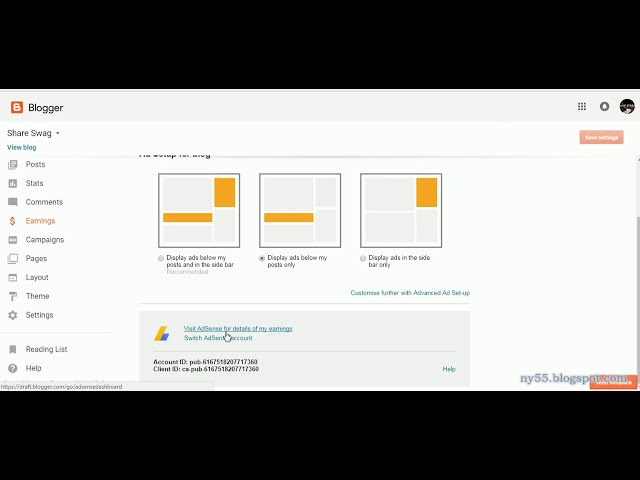
- Navigate to Settings → Monetization (in the left sidebar)
- Look for the "Enable ads on this blog" toggle and confirm it's switched ON
- Make sure the AdSense account linked here matches the Google account you use for your AdSense publisher account — a mismatch here is a silent but very common cause of the error
- If no AdSense account appears in this section, click "Connect AdSense account" and follow the OAuth flow to link them properly
A critical point many guides miss: you must be logged into the same Google account in the same browser for both Blogger and AdSense during this process. If you have a Blogger blog under account-a@gmail.com and your AdSense publisher account is under account-b@gmail.com, you'll need to grant multi-user access within AdSense or consolidate your accounts.
Step 3 — Manually Add the AdSense Widget Through Blogger's Layout
If your account status checks out and settings are enabled but the error persists, the automatic widget application has a bug or conflict somewhere. The workaround is to bypass the automatic process and add the AdSense widget manually through Blogger's Layout editor. This method is reliable and works in the vast majority of cases where the automatic path fails.
Manual Widget Addition — Step by Step
- From your Blogger dashboard, click Layout in the left sidebar
- Identify the sidebar or content area where you want to place the ad
- Click the "Add a Gadget" link in your chosen location
- In the gadget library that pops up, scroll down until you find "AdSense" listed as an official gadget
- Click the blue + button next to it
- A configuration panel will open — select your desired ad format (display, in-feed, in-article, etc.) and click Save
- Back in the Layout view, click Save arrangement at the top right
If the AdSense gadget doesn't appear in your gadget library, or if clicking it still produces an error, proceed to the custom HTML method described in the next section — it's actually the most flexible and reliable long-term approach anyway.
Step 4 — Use Custom HTML/JavaScript When the AdSense Widget Keeps Failing
Here's the solution that professional bloggers and developers reach for when the native widget simply refuses to cooperate: embedding your AdSense ad code directly using a custom HTML gadget. This bypasses Blogger's widget layer entirely and places the ad code directly into your page's HTML — exactly as it would appear on a self-hosted WordPress site or any static website.
How to Get Your AdSense Ad Code
- Log into adsense.google.com
- Go to Ads → By ad unit → Display ads (or your preferred format)
- Create a new ad unit, give it a descriptive name, choose your size and type
- Click Create and copy the full
<script> code snippet that Google generates for you
Embedding the Code in Blogger
- In Blogger's Layout editor, click "Add a Gadget" in your target location
- This time, choose "HTML/JavaScript" from the gadget list
- Leave the title field blank (so no heading appears above your ad)
- Paste your complete AdSense ad code snippet into the content field
- Click Save, then Save arrangement
This method works even when the native AdSense gadget fails because it treats your ad code as raw HTML rather than routing it through Blogger's internal AdSense API. Auto ads — Google's fully automated ad placement system — can also be activated this way by pasting your site-level auto ads code into a single HTML gadget, which then handles all ad placement automatically across your entire blog.
Step 5 — Troubleshoot Template, Cache, and Browser Issues
If you've worked through every step above and the error still persists, the problem is almost certainly environmental — meaning it lives in your blog's template, your browser's stored data, or a device-specific conflict rather than in your account settings.
Template and Layout Troubleshooting
Third-party and heavily customized Blogger templates sometimes include JavaScript that conflicts with Google's ad code injection, or they may be missing the required <b:skin> and <b:template-skin> XML tags that Blogger needs to safely add gadgets. Here's how to isolate and fix this:
- Temporarily switch to one of Blogger's official default templates (like Contempo, Soho, or Emporio) from Theme → Browse themes
- After switching, attempt to apply the AdSense widget again
- If it works on the default template, your custom template is the culprit — you'll need to either use the custom HTML method above or have a developer audit your template's XML
- If you want to edit your template XML directly, go to Theme → Edit HTML and look for any ad-blocker scripts or overly aggressive Content Security Policy declarations that might be present
Clearing Cache and Cookies
Stale browser cache and cookies are responsible for more AdSense widget errors than most people realize. When your browser stores an old session token that predates a recent account change or Blogger update, the authentication handshake fails silently and produces the generic error.
- In Chrome: press
Ctrl + Shift + Delete (Windows) or Cmd + Shift + Delete (Mac), select "All time" as the range, check Cookies and Cached images and files, then click Clear data
- After clearing, close all browser tabs and reopen a fresh session before attempting the widget again
- Test in a private/incognito window as a quick diagnostic — if the widget applies successfully in incognito, a browser extension (particularly any ad blocker) is interfering with the process in your normal session
- Try a completely different browser (Firefox, Edge, or Safari) to rule out browser-specific bugs
Checking AdSense Policy Compliance
Even a fully approved AdSense account can be quietly blocked from applying widgets to a specific blog if that blog's content has triggered a policy flag. Google's automated systems continuously scan connected sites and can restrict ad serving at the property level without sending a prominent notification.
- In AdSense, check Policy center for any site-specific violations
- Common issues: thin content (posts under 300 words with no real value), copyrighted material, content in categories Google doesn't monetize (adult, gambling, etc.), or an About/Contact page that's missing
- Ensure your blog has a clear Privacy Policy page that discloses AdSense cookie usage — this is now effectively required
Key Takeaways
- Always verify full AdSense account approval first — the two-stage approval process means many bloggers try to add the widget before their account is actually ready to serve ads.
- Blogger's internal monetization toggle must be ON and linked to the correct Google account — a mismatch between your Blogger and AdSense Google accounts is a silent but extremely common cause of this error.
- The custom HTML/JavaScript gadget method is the most reliable workaround — pasting your AdSense ad unit code directly into an HTML gadget bypasses the native widget layer entirely and works even when the official AdSense gadget fails.
- Template conflicts and browser cache issues are underestimated culprits — always test with a default Blogger theme and in an incognito window before assuming the problem is account-related.
- Policy compliance is non-negotiable — a blog with thin content, missing pages, or policy violations will be quietly blocked from ad application regardless of how correctly you follow the technical steps.
Frequently Asked Questions
Why does Blogger say "An error occurred when we tried to apply the AdSense widget to your blog" even though my AdSense account is approved?
Full AdSense approval doesn't automatically mean your Blogger blog is cleared for widget application. The most common causes after approval are: Blogger's internal monetization toggle being switched off, a Google account mismatch between your Blogger and AdSense accounts, an incompatible blog template, or a policy flag on your specific blog URL. Work through each of these systematically — start in Blogger Settings → Monetization and verify the linked AdSense account matches your publisher account exactly.
Can I add AdSense ads to Blogger without using the official AdSense gadget?
Yes, absolutely. The most effective alternative is to use Blogger's HTML/JavaScript gadget (found under Add a Gadget → HTML/JavaScript in the Layout editor) and paste your AdSense ad unit code directly into it. This method bypasses the native widget integration entirely and is actually preferred by many professional bloggers because it gives you precise control over ad placement and format.
How long does it take for the AdSense widget error to resolve after a new account is approved?
After initial AdSense approval, full ad serving activation (which is what allows the widget to apply without errors) typically takes 24 to 72 hours, though in some cases it can take up to two weeks for complete account verification. During this window, use the custom HTML/JavaScript gadget method to place your auto ads code — this will work as soon as your site-level code is activated, even before individual ad units are fully live.
Does clearing browser cache actually