
how to add idm extension in chrome
November 11, 2026 — ny_wk
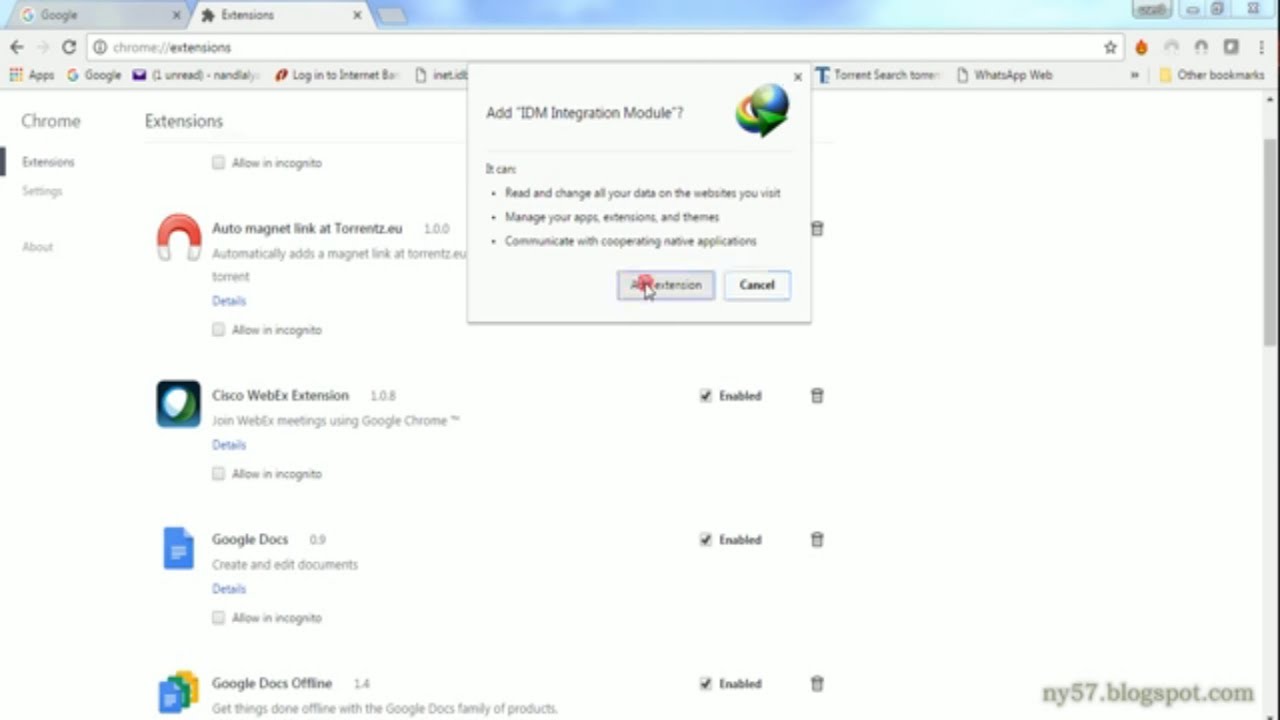
▶ how to add idm extension in chrome | Subscribe to @explorenystream
How to Add IDM Extension in Chrome — The Complete Step-by-Step Guide
Adding the IDM extension in Chrome is one of the most searched browser customization tasks for anyone who relies on Internet Download Manager to supercharge their download speeds. If you've installed IDM on your Windows PC but can't figure out why it isn't grabbing videos or files from Chrome, this exhaustive guide walks you through every method, every pitfall, and every verification step — so you never miss a download again.
Why the IDM Extension in Chrome Matters More Than You Think
Internet Download Manager — better known as IDM — has been a staple of power users since the early 2000s. It uses dynamic file segmentation to split downloads into multiple simultaneous streams, delivering speeds that can be up to 5× faster than a browser's native downloader. But here's the catch: Chrome does not hand control of downloads to IDM automatically. Without a properly installed and enabled IDM Chrome extension, the two applications simply don't talk to each other.
The result? You click a download link, Chrome handles it in its own slow, single-threaded way, and IDM sits idle in your taskbar. Getting the extension right is the single most important step in making IDM useful inside Chrome. It's also surprisingly confusing because Google removed IDM's original extension from the Chrome Web Store — which means the installation path is different from what you'd expect for a typical extension.
Understanding exactly why this friction exists sets you up to fix it permanently rather than fumbling through trial and error every time you reinstall Windows or update Chrome.
What You Need Before You Start: Prerequisites Checklist
Before diving into the steps to add IDM extension to Chrome, make sure everything on this list is in order. Skipping even one item is responsible for the majority of failed setups.
- IDM fully installed on Windows: The extension is a bridge between Chrome and the IDM application. If IDM isn't installed, there's nothing to bridge to. Download the latest version from the official IDM website (internetdownloadmanager.com).
- IDM is registered or in trial mode: An unregistered, expired IDM installation can block the browser integration from functioning correctly. Ensure your license is active or your 30-day trial is still running.
- Google Chrome is up to date: Open
chrome://settings/helpand confirm Chrome is on the latest stable build. Older builds can behave unpredictably with manually loaded extensions. - Windows PC (not Mac or Linux): IDM is a Windows-only application. This entire process does not apply to macOS or Linux environments.
- Administrator access: Some steps require you to run Chrome or modify system files. You'll want admin rights on the machine.
Once every item above is confirmed, you're ready to proceed.
How to Add IDM Extension in Chrome: The Primary Method (IDM's Built-In Integration)
The cleanest and most reliable method to add the IDM extension in Chrome comes directly from IDM's own installation package. When IDM installs, it places a Chrome extension file on your system and, in many cases, attempts to register it automatically. Here's how to trigger or complete that process manually.
Step 1 — Open IDM and Trigger Browser Integration
Launch Internet Download Manager. In the top menu bar, click Downloads, then navigate to Options. A settings window will open. Click the General tab if it isn't already selected. You'll see a section labeled Browser Integration or IDM download integration. Make sure the checkbox next to Google Chrome is ticked. If it was already ticked, uncheck it, click Apply, re-check it, and click Apply again to force a refresh.
Step 2 — Navigate to Chrome's Extensions Page
In Chrome, open a new tab and type chrome://extensions in the address bar and press Enter. This is Chrome's dedicated extension management dashboard. You'll see all currently installed extensions listed here.
Step 3 — Enable Developer Mode
In the top-right corner of the chrome://extensions page, find the toggle labeled Developer mode. Switch it ON. This is a critical step. Developer mode allows Chrome to load extensions from local directories on your PC — exactly what the IDM integration file requires.
Step 4 — Locate the IDM Extension Folder on Your PC
The IDM Chrome extension file is stored locally after installation. The default path is typically:
C:\Program Files (x86)\Internet Download Manager\IDMGCExt
Or on 64-bit systems without the x86 path:
C:\Program Files\Internet Download Manager\IDMGCExt
Open File Explorer and navigate to this folder to confirm it exists. Inside you should see files including manifest.json, which confirms it's a valid Chrome extension package.
Step 5 — Load the Extension Unpacked
Back on the chrome://extensions page (with Developer mode ON), click the button that says Load unpacked. A file browser dialog will appear. Navigate to the IDMGCExt folder you found in Step 4, select the folder itself (not any file inside it), and click Select Folder. Chrome will process the folder and — if everything is correct — the IDM Integration Module extension will appear in your extensions list, active and enabled.
Step 6 — Verify the Integration Is Working
Reload Chrome completely (close all windows and reopen). Navigate to any page with a downloadable file — a PDF, a software installer, or a video. When you click the download link, IDM should intercept it and show its familiar download dialog box with speed, file name, and destination folder options. If it does, the integration is working perfectly.
Alternative Method: Using the IDM Extension from the Chrome Web Store (When Available)
Historically, IDM published its IDM Integration Module extension on the Chrome Web Store, allowing one-click installation. Google periodically removes or restricts extensions that use certain APIs, and IDM's Web Store listing has had an on-again, off-again history. It's always worth checking.
Searching the Web Store
Open chrome://extensions and click the hamburger menu (three horizontal lines) in the top-left, then click Open Chrome Web Store. In the search bar, type IDM Integration Module. If a result appears published by Tonec Inc. (the official IDM developer), click Add to Chrome and follow the prompts. This is the simplest method when it's available.
A Word of Caution on Fake IDM Extensions
The Chrome Web Store has historically harbored counterfeit IDM extensions — third-party uploads that mimic IDM's branding but serve ads, steal browsing data, or simply don't work. Only install extensions published by Tonec Inc. Verify the developer name before clicking anything. If you're not certain, the manual unpacked method described above is always safer because it uses files that came directly from IDM's own installer.
Troubleshooting: IDM Extension Not Working in Chrome
Even after following every step correctly, some users find that the IDM extension isn't showing in Chrome or isn't intercepting downloads. These are the most common issues and their precise fixes.
Problem: "This extension is not from the Chrome Web Store" Warning
Chrome occasionally throws a banner warning that your manually loaded extension wasn't installed from the Web Store, and it may disable the extension on restart. This is Chrome's policy enforcement. The fix is to keep Developer mode ON — disabling it after loading the extension will cause Chrome to auto-remove it. Alternatively, check if your installed IDM version has a newer extension that addresses this; updating IDM to the latest build often resolves compatibility warnings.
Problem: IDM Extension is Enabled But Downloads Still Go to Chrome
This usually means the IDM helper application isn't running in the background. Open Task Manager (Ctrl + Shift + Esc) and look for IDMan.exe in the Processes list. If it's not there, IDM isn't running. Open IDM manually and set it to start with Windows via Options → General → Start IDM on Windows startup. Also check Options → File Types to ensure the file types you're downloading (e.g., .zip, .exe, .mp4) are listed in IDM's monitored extensions.
Problem: The IDMGCExt Folder Doesn't Exist
If you can't find the extension folder, IDM may not have installed the Chrome integration component. Reinstall IDM, and during the installation wizard pay close attention — there may be a checkbox for browser integration that was unchecked during the original install. After reinstalling, check the folder again.
Problem: Chrome Updates Break the IDM Extension
Major Chrome version updates (especially those crossing architecture changes) can disable manually-loaded extensions. After a Chrome update, go to chrome://extensions and check whether the IDM Integration Module is still enabled. If it shows as disabled or has an error badge, click Remove and repeat the Load Unpacked process with the same folder. It takes under two minutes once you know the path.
Problem: IDM Doesn't Capture Video Downloads (YouTube, Etc.)
IDM's video capture feature depends on its ability to detect streaming media. Some platforms have moved to encrypted DASH or HLS streams that IDM cannot legally or technically intercept. For conventional file downloads (software, PDFs, documents, direct video links), the extension works reliably. Streaming platforms like YouTube have specific terms of service regarding downloading, so approach those situations with that context in mind.
Pro Tips to Get the Most Out of IDM + Chrome Integration
Once the IDM Chrome extension is working correctly, a handful of settings will significantly improve your experience.
- Pin the IDM extension icon: Click the puzzle-piece icon in Chrome's toolbar, find IDM Integration Module, and click the pin icon. This gives you a one-click button to temporarily disable/enable IDM capture — useful when you want Chrome to handle a download natively.
- Customize IDM's file type list: In IDM → Options → File Types, you can add or remove extensions that IDM monitors. Add
.mkv,.webm,.apk, or any other types you frequently download. - Set up download categories: IDM allows you to define automatic save folders by file type. PDFs go to Documents, videos to Videos, etc. Set this up in Options → Save to.
- Use IDM's scheduler: Schedule large downloads for off-peak hours. IDM can start, pause, and resume downloads on a timer — ideal for large files on metered connections.
- Enable queue management: If you batch-download multiple files, IDM's queue feature lets you set how many simultaneous downloads run at once. Three to five simultaneous downloads is typically the sweet spot for home broadband connections.
Key Takeaways
- IDM does not integrate with Chrome automatically — you must manually install the IDM Integration Module extension using the Load Unpacked method or via the Chrome Web Store when available.
- Developer mode must be kept ON in Chrome's extension settings for the manually loaded IDM extension to remain active across browser restarts.
- The IDMGCExt folder is located inside your IDM installation directory (typically
C:\Program Files (x86)\Internet Download Manager\IDMGCExt) and contains the extension Chrome needs. - Always use the official Tonec Inc. extension — fake IDM extensions on the Web Store are a real security risk and should be avoided without exception.
- Chrome updates can disable the extension — after any major Chrome update, check
chrome://extensionsand re-enable or reload the IDM extension if needed.
Frequently Asked Questions
Why is IDM not showing download option in Chrome?
IDM won't show its download dialog in Chrome if the IDM Integration Module extension is not installed and enabled. Go to chrome://extensions, enable Developer mode, and load the IDMGCExt folder from your IDM installation directory using the Load Unpacked option. Also confirm IDM (IDMan.exe) is actively running in the background.
How do I add IDM extension to Chrome without the Chrome Web Store?
Open chrome://extensions in Chrome, toggle Developer mode ON, click Load unpacked, and navigate to C:\Program Files (x86)\Internet Download Manager\IDMGCExt. Select that folder and click Select Folder. Chrome will install the extension locally from your IDM installation files — no Web Store required.
Does IDM extension work on Chrome in 2024?
Yes, IDM extension works in Chrome in 2024 using the manual Load Unpacked method. Because Google has restricted certain extension APIs, the Web Store version may not always be available, but the local installation from IDM's own files remains fully functional on Windows with the latest Chrome builds.
Why does Chrome keep disabling the IDM extension?
Chrome disables manually loaded (unpacked) extensions when Developer mode is turned off or after certain browser updates. Keep Developer mode enabled in chrome://extensions at all times. If a Chrome update disables it, simply navigate back to the extensions page and re-enable or reload the extension using the same IDMGCExt folder path.
Getting the IDM extension set up correctly in Chrome is a one-time process that pays dividends every single time you download a file — faster speeds, better organization, and the ability to pause and resume downloads without losing progress. Once it clicks into place, you'll wonder how you ever managed without it.
For a hands-on visual walkthrough of every step covered in this guide, watch the full video on the @explorenystream YouTube channel. Subscribe so you never miss a practical how-to guide that cuts through the confusion and gets you to a working solution fast.