
How to configure Argo login using Google or Jumpcloud
— ny_wk
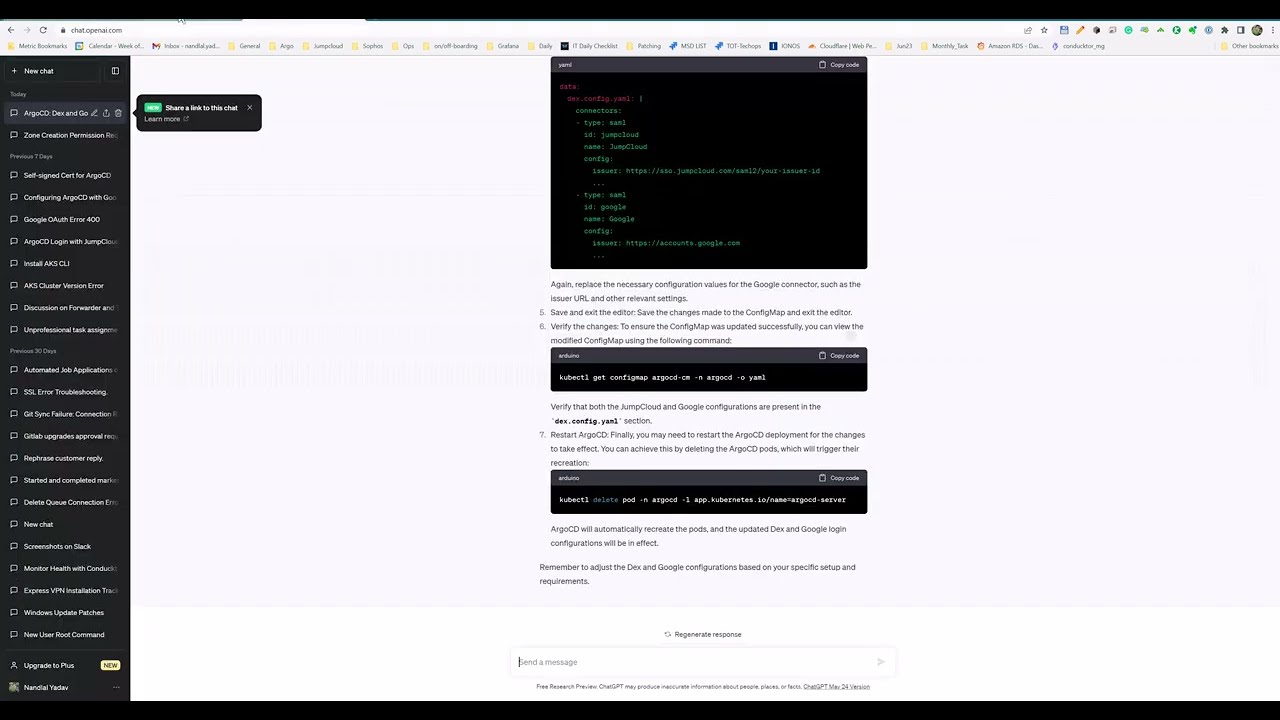
Securing your GitOps workflows is paramount in today's cloud-native landscape, and that often begins with how users log into your core tools. This deep dive will walk you through configuring Argo CD to leverage enterprise-grade authentication using either Google's OAuth 2.0 or JumpCloud's SAML 2.0, ensuring a streamlined and secure login experience for your team.
As a DevOps engineer, you know how crucial it is to have robust, yet user-friendly, authentication for your critical tools. Argo CD, our go-to GitOps continuous delivery tool, is no exception. Gone are the days of managing local user accounts for every developer. Integrating with a centralized Identity Provider (IdP) like Google or JumpCloud not only enhances security but also simplifies user management considerably. Let's grab some chai and unravel the mysteries of integrating these IdPs with Argo CD, step by step, just like we'd discuss a deployment strategy.
Why Centralized Authentication for Argo CD, Yaar?
Before we dive into the nitty-gritty configuration, let's briefly touch upon why this even matters. Using external authentication providers like Google or JumpCloud for Argo CD login offers several compelling advantages:
- Enhanced Security: Your IdP handles complex authentication logic, multi-factor authentication (MFA), and enforces security policies. This offloads a significant security burden from Argo CD itself.
- Simplified User Management: New hires? Just add them to the relevant Google Group or JumpCloud Directory. Leavers? Remove them from the IdP, and their access to Argo CD is automatically revoked. No more manual syncing or forgotten accounts.
- Single Sign-On (SSO): Users can access Argo CD using their existing corporate credentials, reducing "password fatigue" and improving the overall user experience. One login for many services – that's the dream, right?
- Auditability: Centralized IdPs often provide better auditing capabilities, allowing you to track who accessed what and when, which is vital for compliance.
- Reduced Operational Overhead: Less time spent managing individual user accounts means more time for actual GitOps goodness!
In essence, it’s about making your life easier while making your systems more secure. A win-win, if you ask me!

Setting the Stage: Your Argo CD Environment
Before we start tinkering with authentication settings, let's ensure your Argo CD instance is up and running. The instructions here assume you have a Kubernetes cluster (be it AKS, EKS, GKE, or a self-managed one) and Argo CD already deployed. If not, don't worry, the setup is quite straightforward.
Typically, you'd start by creating a dedicated namespace for Argo CD:
kubectl create namespace argocdOnce the namespace is ready, you can deploy Argo CD using its official manifest. This command fetches the latest stable version and deploys all necessary components into your `argocd` namespace:
kubectl apply -n argocd -f https://raw.githubusercontent.com/argoproj/argo-cd/stable/manifests/install.yamlThis command creates various Kubernetes resources like Deployments, Services, ConfigMaps, and Custom Resource Definitions (CRDs) for Argo CD. After a few moments, all pods should be running, and you'll have a fully functional Argo CD instance. You can verify the deployment by checking the pods:
kubectl get pods -n argocdFor initial access, you'd typically port-forward the Argo CD UI service and retrieve the default admin password. But since we're setting up external auth, let's fast-forward to the good stuff!
The core of Argo CD's configuration for external authentication lies within its `argocd-cm` ConfigMap (for general settings) and `argocd-secret` Secret (for sensitive data like client secrets). We'll be modifying these resources to enable Google OAuth and JumpCloud SAML.
Google OAuth 2.0 for Argo CD: The Google Developer Console Dance
Let's kick things off with Google. If your organization uses Google Workspace, this is probably the most natural choice. Google uses the OAuth 2.0 protocol for authentication, which is widely adopted and relatively simple to configure. Think of it as granting permission for Argo CD to say, "Hey Google, is this user legit?" and Google replying, "Haan, boss, they are!"
Step 1: Setting Up Your OAuth 2.0 Client ID in Google Developer Console
This is where you'll tell Google about your Argo CD instance. Open up your browser and head over to the Google Developer Console. You'll need an active Google Cloud Platform (GCP) project. If you don't have one, create a new project – it's free to create projects, and you only pay for resources you consume, which for this setup is practically nil.
- Select or Create a Project: From the top bar, select an existing project or create a new one. Give it a meaningful name, like "Argo CD Auth Integration."
- Navigate to Credentials: In the left-hand navigation pane, search for "APIs & Services" and then click on "Credentials."
- Create New Credentials: Click on the "CREATE CREDENTIALS" button at the top and select "OAuth client ID."
- Choose Application Type: When prompted for the application type, select "Web application." This is crucial because Argo CD's UI acts as a web application in this OAuth flow.
- Name Your OAuth Client: Give your OAuth client a descriptive name, something like "Argo CD Web Client."
- Configure Authorized Redirect URIs: This is arguably the most critical part. The Authorized redirect URI tells Google where to send the user back after successful authentication. For Argo CD, this URI must be in the format:
https://your-argo-domain.com/api/v1/auth/callback.- Your Argo Domain: This is the publicly accessible URL of your Argo CD instance. Make sure this domain resolves correctly to your Argo CD ingress or LoadBalancer. For example, if you access Argo CD at `https://argocd.mycompany.com`, your redirect URI will be `https://argocd.mycompany.com/api/v1/auth/callback`.
- Why is this important? Google uses this URI to ensure that the authentication response is sent only to your legitimate application, preventing redirection attacks. If this doesn't match exactly, authentication will fail with an "invalid redirect URI" error – been there, done that, it's a common snag!
You can also add an "Authorized JavaScript origins" if needed for more complex scenarios, but for basic Argo CD login, the redirect URI is sufficient.
- Generate Client ID and Client Secret: Once you click "CREATE," Google will generate a Client ID and a Client Secret for your web application. Make a note of these immediately! The Client Secret is only shown once. Treat it like a password; never hardcode it directly into public repositories or expose it.
Chalo, that's half the battle won. You've prepared Google to talk to Argo CD.
Step 2: Integrating Google OAuth with Argo CD
Now that you have your Client ID and Client Secret, it's time to tell Argo CD how to use them. This involves editing the `argocd-cm` ConfigMap and `argocd-secret` Secret in your Kubernetes cluster.
- Edit `argocd-cm` ConfigMap:
Open the `argocd-cm` ConfigMap for editing:
kubectl edit configmap argocd-cm -n argocdLocate the `data:` section and add the `url` of your Argo CD instance and the `oidc.config` section for Google. Replace `argocd.mycompany.com` with your actual domain and `YOUR_CLIENT_ID` with the ID you got from Google.
apiVersion: v1
kind: ConfigMap
metadata:
  name: argocd-cm
  namespace: argocd
data:
  url: https://argocd.mycompany.com # IMPORTANT: This must match your Argo CD's public URL
  oidc.config: |
    name: Google
    issuer: https://accounts.google.com
    clientID: YOUR_CLIENT_ID
    clientSecret: $argocd.oidc.google.clientSecret # Reference to the Kubernetes Secret
    requestedScopes: ["openid", "profile", "email"]
    # For more advanced scenarios, like limiting access to specific Google Groups:
    # See the 'groups' claim below, requires configuring Google Cloud Identity/Workspace
    # rootCACert: | # If you need a custom CA certificate for Google (rare)
    #   -----BEGIN CERTIFICATE-----
    #   ...
    #   -----END CERTIFICATE-----
    # For roles based on Google Groups:
    # groupsClaim: hd # For Hosted Domain (Google Workspace)
    # groupsClaim: groups # Requires specific Google API scope for groups, more complex
A little note on `requestedScopes`: `openid` is fundamental for OIDC, `profile` provides basic user profile info, and `email` fetches the user's email address. These are generally sufficient.
- Create/Update `argocd-secret` Secret:
The `clientSecret` is sensitive, so we store it in a Kubernetes Secret. If you don't already have an `argocd-secret`, you might need to create it. More often, you'll edit an existing one. Remember, secrets are base64 encoded.
First, base64 encode your Google Client Secret:
echo -n "YOUR_GOOGLE_CLIENT_SECRET" | base64Then, edit the `argocd-secret`:
kubectl edit secret argocd-secret -n argocdAdd the encoded client secret under the `data:` section:
apiVersion: v1
kind: Secret
metadata:
  name: argocd-secret
  namespace: argocd
type: Opaque
data:
  oidc.google.clientSecret: <YOUR_BASE64_ENCODED_GOOGLE_CLIENT_SECRET>
  # ... other secrets might be here ...
The key `oidc.google.clientSecret` here directly corresponds to the `$argocd.oidc.google.clientSecret` reference we used in the `argocd-cm` ConfigMap. This is how Argo CD securely fetches the secret without hardcoding it.
- Configure RBAC (Role-Based Access Control) (Optional but Recommended):
By default, newly authenticated users from Google won't have any specific roles in Argo CD. You'll want to map them to roles like `read-only`, `admin`, or custom roles. This is done in the `argocd-rbac-cm` ConfigMap.
kubectl edit configmap argocd-rbac-cm -n argocdYou can map users by their email or Google groups (if `groupsClaim` is configured). For example, to give admin access to a specific email:
apiVersion: v1
kind: ConfigMap
metadata:
  name: argocd-rbac-cm
  namespace: argocd
data:
  policy.csv: |
    g, your.email@yourdomain.com, role:admin
    # p, role:admin, applications, *, *, allow
    # p, role:admin, clusters, get, *, allow
    # p, role:admin, projects, get, *, allow
    # ... more policies ...
  policy.default: role:readonly # What role unassigned users get
If you've configured `groupsClaim` (e.g., `hd` for Hosted Domain or `groups` for specific Google groups), you can map groups:
g, your-google-group-name, role:adminRemember to check Argo CD's documentation for the most accurate and flexible RBAC policies. This is a topic that merits its own blog post!
Related: Implementing Robust RBAC in Kubernetes: A Deep Dive
Once you save these ConfigMaps and Secret, Argo CD's pods might restart to pick up the changes, or you might need to manually restart them for changes to take effect immediately.
JumpCloud SAML 2.0 for Argo CD: Your Enterprise IdP
Now, let's switch gears to JumpCloud. If your organization relies on JumpCloud for directory services and SSO across various applications, integrating it with Argo CD via SAML 2.0 is the way to go. SAML (Security Assertion Markup Language) is an XML-based standard for exchanging authentication and authorization data between an Identity Provider (IdP) and a Service Provider (SP). Here, JumpCloud is the IdP, and Argo CD is the SP.
Step 1: Setting Up JumpCloud as an Identity Provider (IdP) for Argo CD
This part happens within your JumpCloud Administrator Console. You'll essentially be creating a new custom SAML application for Argo CD.
- Log in to JumpCloud Administrator Console: Access your JumpCloud tenant's admin console.
- Navigate to SSO Applications: In the left-hand navigation, go to "User Authentication" > "SSO Applications."
- Configure a Custom SAML Application: Click the green "+" button to add a new application and search for "Custom SAML App."
- General Info: Give your application a descriptive display name, like "Argo CD."
- SSO Configuration (SP Information): This is where you configure the Service Provider (Argo CD) details that JumpCloud needs.
- IdP-Initiated URL (Optional, but Good Practice): This can typically be your Argo CD public URL, e.g., `https://argocd.mycompany.com`.
- SP Entity ID: This identifies your Argo CD instance to JumpCloud. Often, this is the same as your Argo CD public URL: `https://argocd.mycompany.com`.
- ACS URL (Assertion Consumer Service URL): This is the endpoint on Argo CD where JumpCloud sends its SAML assertion after successful authentication. Similar to the OAuth redirect URI, it's typically: `https://your-argo-domain.com/api/v1/sso/callback`. Make sure this is precise!
- SAML Subject NameID Format: Usually `urn:oasis:names:tc:SAML:1.1:nameid-format:emailAddress`.
- SAML Subject NameID: Typically `email`.
- Signature Algorithm: RSA_SHA256 (standard).
- Default RelayState: Can be left blank or point to your Argo CD UI base path.
- Attribute Mapping (Crucial for RBAC): This is where you map user attributes from JumpCloud to be sent in the SAML assertion to Argo CD.
- You'll likely want to map `email` as a minimum. Add an attribute named `email` with the value `email`.
- If you plan to use JumpCloud groups for Argo CD RBAC, you'll need to send group information. This is a bit advanced but typically involves adding a custom attribute, e.g., name `groups` and value `memberOf` or a specific group mapping from JumpCloud. Consult JumpCloud's documentation for sending group attributes in SAML assertions.
- Save and Activate: Once configured, save the application. You'll then need to assign users or groups from your JumpCloud directory to this application so they can actually log in using SAML.
- Obtain IdP Metadata from JumpCloud: After saving the application, go back to its configuration. JumpCloud will provide you with the necessary IdP metadata. This usually includes:
- IdP Entity ID (Issuer): A unique identifier for JumpCloud as the IdP. It's often in the format `https://sso.jumpcloud.com/saml2/<JumpCloud-IdP-Entity-ID>`.
- IdP SSO URL: The URL where Argo CD will send authentication requests (SAML AuthnRequest) to JumpCloud. Usually also `https://sso.jumpcloud.com/saml2/<JumpCloud-IdP-Entity-ID>`.
- IdP Certificate: The public certificate of JumpCloud, used by Argo CD to verify the authenticity of SAML assertions. This is usually provided as a downloadable `.pem` or `.cer` file, or as a raw text string.
- IdP Metadata URL: Sometimes JumpCloud provides a direct URL to its metadata XML. If available, this simplifies configuration greatly, as Argo CD can fetch all necessary details from this single URL.
Note: If JumpCloud provides a metadata URL, that's your best bet. If not, you'll manually input the Issuer, SSO URL, and Certificate.
Okay, the JumpCloud side is ready. Ab, let's integrate it with Argo CD.
Step 2: Connecting JumpCloud SAML to Argo CD
Similar to Google OAuth, we'll configure Argo CD using the `argocd-cm` ConfigMap and potentially the `argocd-secret` Secret.
- Edit `argocd-cm` ConfigMap:
Open the `argocd-cm` ConfigMap for editing:
kubectl edit configmap argocd-cm -n argocdLocate the `data:` section and add the `url` of your Argo CD instance and the `oidc.config` section for SAML. Yes, it's still under `oidc.config` in Argo CD, as it's the general external SSO configuration.
Option A: Using IdP Metadata URL (Preferred)
apiVersion: v1
kind: ConfigMap
metadata:
  name: argocd-cm
  namespace: argocd
data:
  url: https://argocd.mycompany.com # IMPORTANT: This must match your Argo CD's public URL
  oidc.config: |
    name: JumpCloud
    issuer: https://sso.jumpcloud.com/saml2/<JumpCloud-IdP-Entity-ID> # Your IdP Entity ID from JumpCloud
    # OR: If JumpCloud provides a metadata URL, use this instead of manual config
    # idpMetadataURL: https://sso.jumpcloud.com/saml2/<JumpCloud-IdP-Entity-ID>/saml2/metadata
    # If using idpMetadataURL, Argo CD will fetch everything else automatically.
    # Otherwise, continue with manual configuration below:
    ssoURL: https://sso.jumpcloud.com/saml2/<JumpCloud-IdP-Entity-ID> # Your IdP SSO URL from JumpCloud
    # The certificate should be base64 encoded and stored in argocd-secret,
    # or provided directly here if it's a short value and not super sensitive (less recommended).
    # If providing directly:
    # rootCACert: |
    #   -----BEGIN CERTIFICATE-----
    #   MII...
    #   -----END CERTIFICATE-----
    # If providing via secret (recommended):
    rootCACert: $argocd.oidc.jumpcloud.rootCACert # Reference to the Kubernetes Secret
    # Other settings like `requestedScopes` are typically not applicable for SAML as attributes are mapped directly.
    # For user mapping in Argo CD, we often use the email attribute from SAML assertion.
    groupsClaim: email # Or a custom attribute name if JumpCloud sends group info differently
Option B: Manual Configuration (If no Metadata URL)
If JumpCloud only gives you the Issuer, SSO URL, and Certificate, you'll input them manually as shown above without the `idpMetadataURL` field. You'll need to paste the raw certificate content (including `-----BEGIN CERTIFICATE-----` and `-----END CERTIFICATE-----`) either directly into `rootCACert` (less secure if ConfigMap is easily accessible) or refer to a Kubernetes Secret as shown below.
- Create/Update `argocd-secret` Secret (for Certificate, if using):
If you're using the `$argocd.oidc.jumpcloud.rootCACert` reference, you'll need to base64 encode your JumpCloud IdP certificate and add it to `argocd-secret`:
First, base64 encode your certificate. Ensure you include the `BEGIN` and `END` lines.
echo -n "YOUR_JUMPCLOUD_CERTIFICATE_CONTENT" | base64Then, edit the `argocd-secret`:
kubectl edit secret argocd-secret -n argocdAdd the encoded certificate under the `data:` section:
apiVersion: v1 kind: Secret metadata: name: argocd-secret namespace: argocd type: Opaque data: oidc.jumpcloud.rootCACert: <YOUR_BASE64_ENCODED_JUMPCLOUD_CERTIFICATE> # ... other secrets might be here ... - Configure RBAC (Role-Based Access Control):
Similar to Google, you'll use `argocd-rbac-cm` to map authenticated users to Argo CD roles. For SAML, you'll typically use the `email` attribute that JumpCloud sends in the SAML assertion as the user identifier.
kubectl edit configmap argocd-rbac-cm -n argocdapiVersion: v1 kind: ConfigMap metadata: name: argocd-rbac-cm namespace: argocd data: policy.csv: | g, user.from.jumpcloud@yourdomain.com, role:admin # If JumpCloud sends group info (e.g., in a 'groups' attribute): # g, jumpcloud-group-name, role:admin policy.default: role:readonlyThe `g` prefix signifies a group or user. For individual users, you map their `NameID` (which is typically their email) from the SAML assertion.
Save your changes. Argo CD should now be configured to use JumpCloud SAML for authentication. The Argo CD UI will show a "LOGIN VIA JUMPCLOUD" button.
Testing, Troubleshooting, and Best Practices
Configuration done, boss! Ab, time to test if it actually works. Remember, "trust but verify" is the mantra in DevOps.
Testing the Login Process
- Access Argo CD UI: Open your browser and navigate to your Argo CD public URL (e.g., `https://argocd.mycompany.com`).
- Select Authentication Method: You should now see a new login button, either "LOGIN VIA GOOGLE" or "LOGIN VIA JUMPCLOUD," in addition to the local login option. Click the appropriate button.
- Authenticate with IdP: You'll be redirected to Google's or JumpCloud's login page. Enter your credentials there.
- Verify Redirection and Access: After successful authentication with the IdP, you should be redirected back to Argo CD and logged in with the roles assigned via RBAC.
Common Pitfalls and Troubleshooting Tips
Yeh sab straight forward nahi hota hai, kuch issues toh aate hi hain. Here are some common problems and how to debug them:
- "Invalid Redirect URI" (Google OAuth): This is the most common error. Double-check that the "Authorized redirect URI" in the Google Developer Console *exactly* matches `https://your-argo-domain.com/api/v1/auth/callback`. Even a trailing slash or a mismatch in HTTP vs. HTTPS can cause this.
- "Application not configured for this user" (JumpCloud SAML): This usually means the user trying to log in hasn't been assigned to the "Argo CD" custom SAML application in JumpCloud. Check your JumpCloud user assignments.
- Argo CD Logs (The ultimate truth-teller): Always check the Argo CD server logs for clues.
kubectl logs -f <argocd-server-pod-name> -n argocdLook for errors related to OIDC, SAML, or authentication. You might see messages about invalid issuer, signature verification failures, or incorrect claims.
- Browser Developer Tools (Network Tab): When you click the login button, observe the network requests in your browser's developer tools. Look for the redirects and any errors returned by Google, JumpCloud, or Argo CD. The SAML response, if captured, can reveal issues with attribute mapping.
- Incorrect `url` in `argocd-cm`: Ensure `url: https://argocd.mycompany.com` in `argocd-cm` is your *exact* public URL. This is critical for Argo CD to construct correct callback URLs.
- Certificate Mismatch (JumpCloud SAML): If you're manually providing the IdP certificate, ensure it's correct, hasn't expired, and is base64 encoded properly (if stored in a secret). Small typos can break SAML signature verification.
- RBAC Policy Issues: If you can log in but don't see any applications or have limited access, it's likely an RBAC issue. Check your `argocd-rbac-cm` ConfigMap. Make sure the user/group identifier you're using in `policy.csv` matches what's provided by the IdP (e.g., the exact email address or group name).
- Time Skew: For SAML, significant time differences between the IdP and SP can cause authentication failures due to signature validity periods. Ensure your Kubernetes nodes have accurate time synchronization (e.g., NTP).
Security Best Practices for Argo CD Authentication
Just like we discuss security post-deployment, a few best practices for auth:
- Secrets Management: Never hardcode sensitive values like `clientSecret` or certificates directly into ConfigMaps or version control. Always use Kubernetes Secrets, and ideally, use a dedicated secrets management solution like HashiCorp Vault or external Secrets Operator to inject them securely.
- Least Privilege: When configuring RBAC, always follow the principle of least privilege. Grant users and groups only the permissions they absolutely need. Don't hand out `admin` roles like free mithai!
- MFA Enforcement: Ensure your IdP (Google or JumpCloud) enforces Multi-Factor Authentication for all users accessing Argo CD. This is a non-negotiable security layer.
- Audit Logs: Regularly review authentication logs from both your IdP and Argo CD to detect any suspicious activity.
- Regular Reviews: Periodically review your IdP application configurations and Argo CD RBAC policies to ensure they remain aligned with your organizational security posture and user roles.
Further Reading: Best Practices for Kubernetes Secrets Management

Key Takeaways
- External authentication for Argo CD via Google OAuth or JumpCloud SAML significantly enhances security, simplifies user management, and enables SSO.
- Google OAuth setup requires creating an OAuth 2.0 Web Application client in Google Developer Console, primarily focusing on the `Authorized redirect URIs`.
- JumpCloud SAML setup involves configuring a Custom SAML App in the JumpCloud Admin Console, specifying SP Entity ID, ACS URL, and obtaining IdP metadata (Issuer, SSO URL, Certificate).
- All Argo CD authentication configurations are primarily managed through the `argocd-cm` ConfigMap and `argocd-secret` Secret in your Kubernetes cluster.
- Thorough testing and understanding common troubleshooting steps (logs, browser dev tools, exact URI/URL matches, certificate validity, RBAC policies) are crucial for a successful integration.
Frequently Asked Questions
What is the difference between OAuth 2.0 and SAML 2.0?
OAuth 2.0 is primarily an authorization framework that enables third-party applications (like Argo CD) to obtain limited access to a user's resources (e.g., profile info from Google) without exposing their credentials. SAML 2.0, on the other hand, is an XML-based standard specifically designed for exchanging authentication and authorization data between an Identity Provider (IdP) and a Service Provider (SP), typically for Single Sign-On (SSO) purposes in enterprise environments. While both facilitate SSO, SAML is more verbose and often preferred for formal enterprise identity federation, whereas OAuth is more flexible for delegated authorization and widely used by consumer applications.
Can I use both Google OAuth and JumpCloud SAML with a single Argo CD instance?
Argo CD supports multiple OIDC/SAML providers concurrently. You can configure both Google and JumpCloud (or any other supported IdP) in your `argocd-cm` ConfigMap. Users will then see multiple login options on the Argo CD UI, allowing them to choose their preferred authentication method. This is great for organizations with diverse user bases or during migration periods.
How do I manage user roles and permissions in Argo CD after integrating with an external IdP?
User roles and permissions are managed through Argo CD's RBAC (Role-Based Access Control) system, which is configured in the `argocd-rbac-cm` ConfigMap. After authentication by the external IdP (Google or JumpCloud), Argo CD receives user identity information (like email or group memberships). You then define policies in `argocd-rbac-cm` that map these external identities to internal Argo CD roles (e.g., `role:admin`, `role:readonly`) and permissions.
What if my Argo CD instance is not publicly accessible (e.g., behind a private network)?
If your Argo CD is not publicly accessible, the external IdP (Google or JumpCloud) will not be able to redirect users back to the `callback` URL. In such scenarios, you typically need to either: 1) Expose Argo CD to the internet via an Ingress Controller and a public domain, ensuring it's properly secured. 2) Use a VPN or reverse proxy setup that can bridge the private network access to the IdP's redirection process. The `callback` URL must be reachable by the user's browser, which in turn needs to reach your Argo CD instance. Make sure your network configuration allows for this flow.
Toh, that's the full lowdown on setting up Argo CD login with Google or JumpCloud. Implementing these centralized authentication methods might seem like a bit of a setup initially, but the long-term benefits in terms of security, user experience, and reduced operational overhead are immense. If you found this useful, don't forget to watch the original video on @explorenystream for a visual walkthrough and subscribe for more such in-depth DevOps content!